Remote server management via IPMI/XCC
Introduction
IPMI (Intelligent Platform Management Interface) / XCC (XClarity Controller – Lenovo platforms) is a hardware management interface that allows access to the server regardless of the operating system.
This makes it possible to:
remote login to the server console (KVM),
restart and power management,
installation of the operating system,
troubleshooting issues (e.g. when SSH/RDP isn’t working).
Required access details
To log in to IPMI/XCC, you will need:
IP address of the IPMI/XCC interface
username (e.g. ADMIN / root – depending on the configuration)
password
This information is available in the customer portal by expanding the ACTIONS menu and then selecting the Manage IPMI option. To view your login details, select the SHARE option.
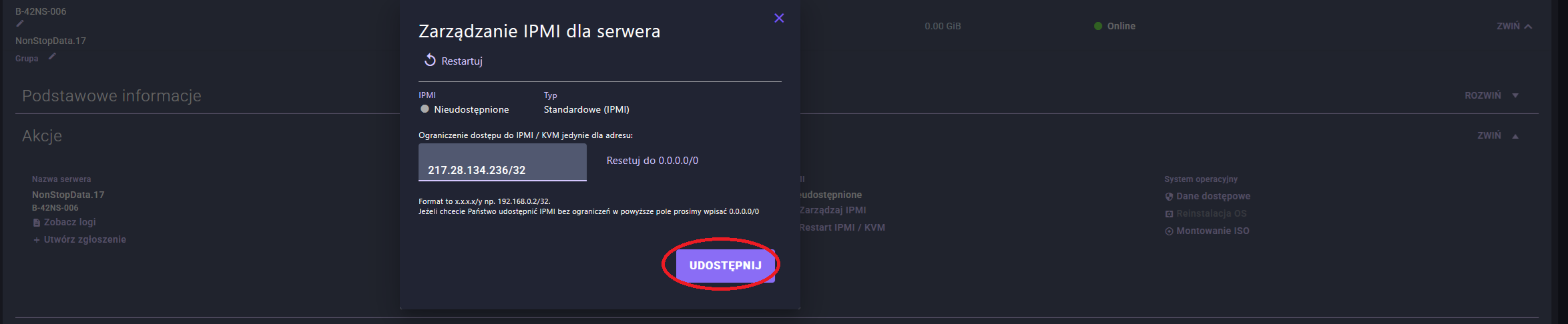
Logowanie do interfejsu IPMI / XCC
Steps:
Open your web browser
Type or paste the IPMI interface address copied from the Customer Zone:
Accept the certificate warning (if it appears)
Enter your username and password
Click ‘Log in’
XCC interface (Lenovo)
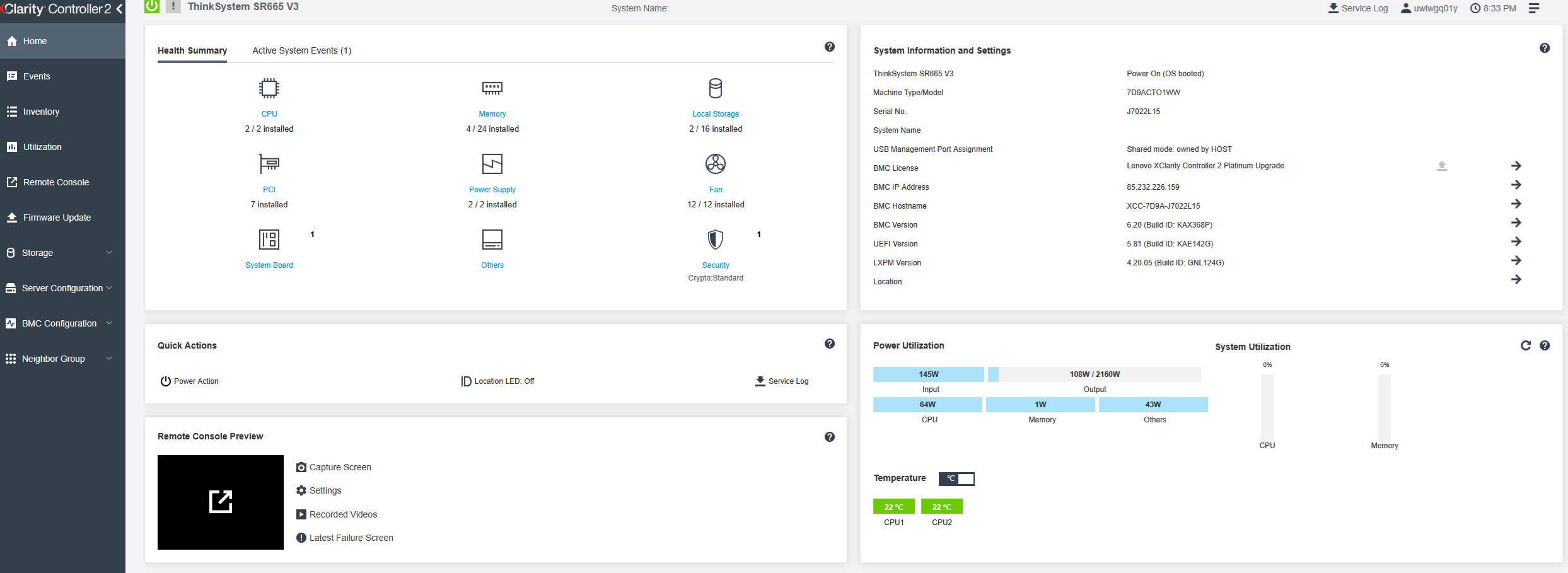
Once you have logged in to XCC, the following are available, amongst other things:
Main sections:
Dashboard – server status (CPU, RAM, temperature)
Remote Control / Console (KVM) – access to the server screen
Power – switch on, switch off, restart
Storage / Hardware** – hardware components**
Logs – system and hardware logs
IPMI console
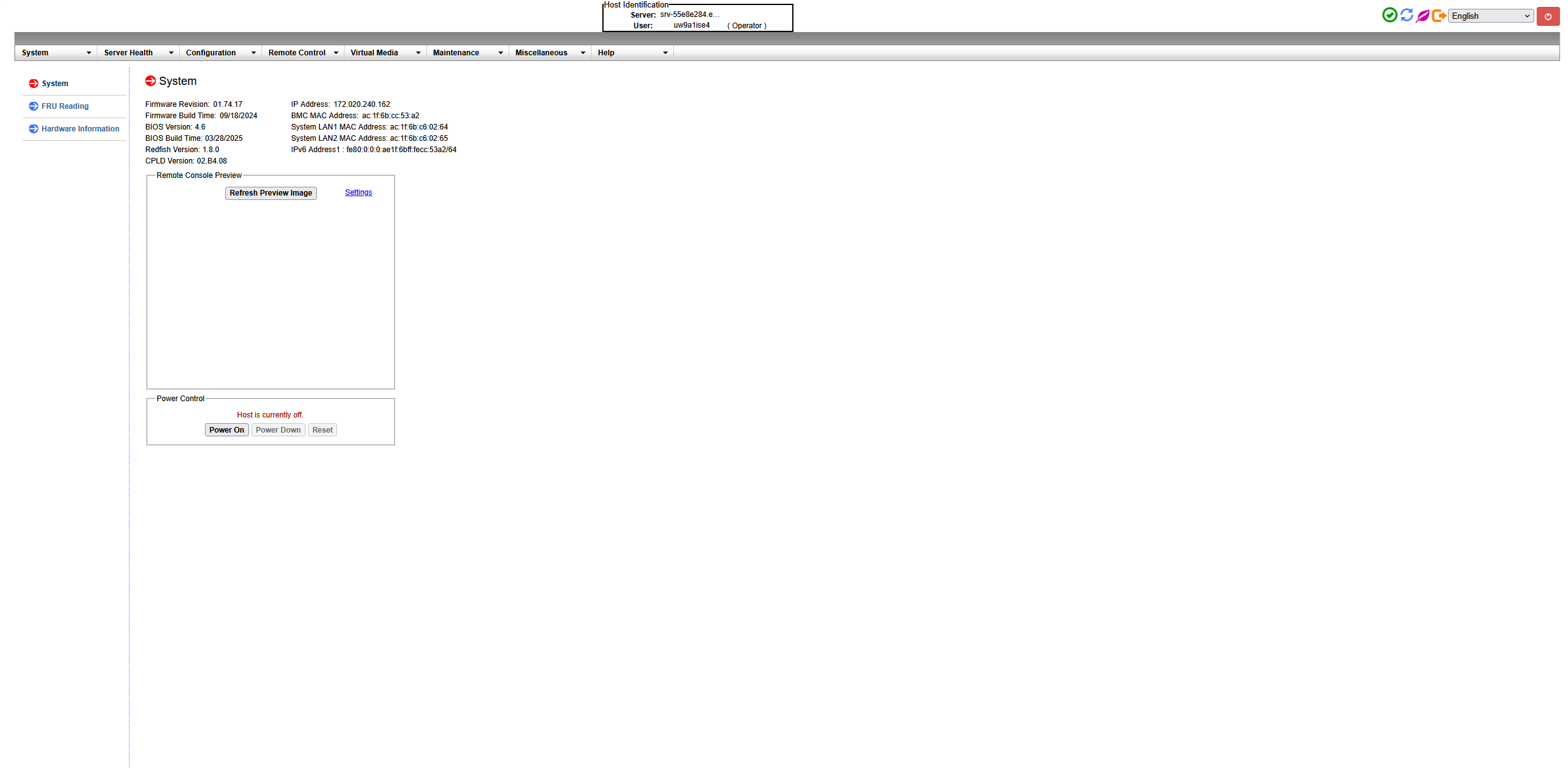
Starting the console (KVM)
A KVM console allows you to work with a server as if you were physically sitting in front of it.
Steps:
Go to the section:
Remote Control or Remote Console
Click:
‘Launch Console’ / ‘Start Remote Control’
A new window will open showing a screenshot of the server
Power management operations
From the IPMI/XCC interface, you can:
Power On – switching on the server
Power Off – switching off
Reboot – restart
Hard Reset – forced restart
⚠️ Please note: ‘Hard Reset’ operations may result in the loss of data not saved to the system.
The most common usage scenarios
IPMI/XCC is particularly useful when:
The server is not responding via SSH/RDP
A system restart is required
It is necessary to reinstall the operating system
there are hardware issues
Common problems and solutions
No access to IPMI
check that the IP address is correct
Make sure that access to the management network is permitted
Login problem
Check that your username and password are correct
please note the use of capital letters
The KVM console won’t start
Check your browser’s pop-up blockers
Try a different browser (Chrome/Edge)
clear the cache
Safety recommendations
Change the default password after logging in for the first time
Restrict IPMI access to trusted IP addresses only (VPN / firewall)
Do not grant access to third parties
monitor access logs
Support
If you encounter any problems:
Contact Atman’s Customer Service Department
Prepare:
Service merchant ID (you can find this in the Customer Area)
description of the problem
time of occurrence