Configuration of VMware vCloud Availability module for migration of machines to Atman VMware Cloud
VMware vCloud Director Availability module
It allows accelerating the migration of VMware environments that currently reside in the customer’s local data centres to Atman VMware Cloud.
It also allows Disaster Recovery (DR) solutions to be created
Provides replication and failover at the virtual machine or vApp level and automates this process
Managing the migration process is easy thanks to a plug-in in the Atman VMware Cloud dashboard
Step 1
Preparing a virtual machine with VMware Cloud Director Availability
From within vCenter, we run the dedicated image provided from VMware in OVA format and invoke the machine in our cluster from it.
The image can be downloaded at: https://customerconnect.vmware.com/downloads/details?downloadGroup=VCDA_4501&productId=1380#drivers_tools
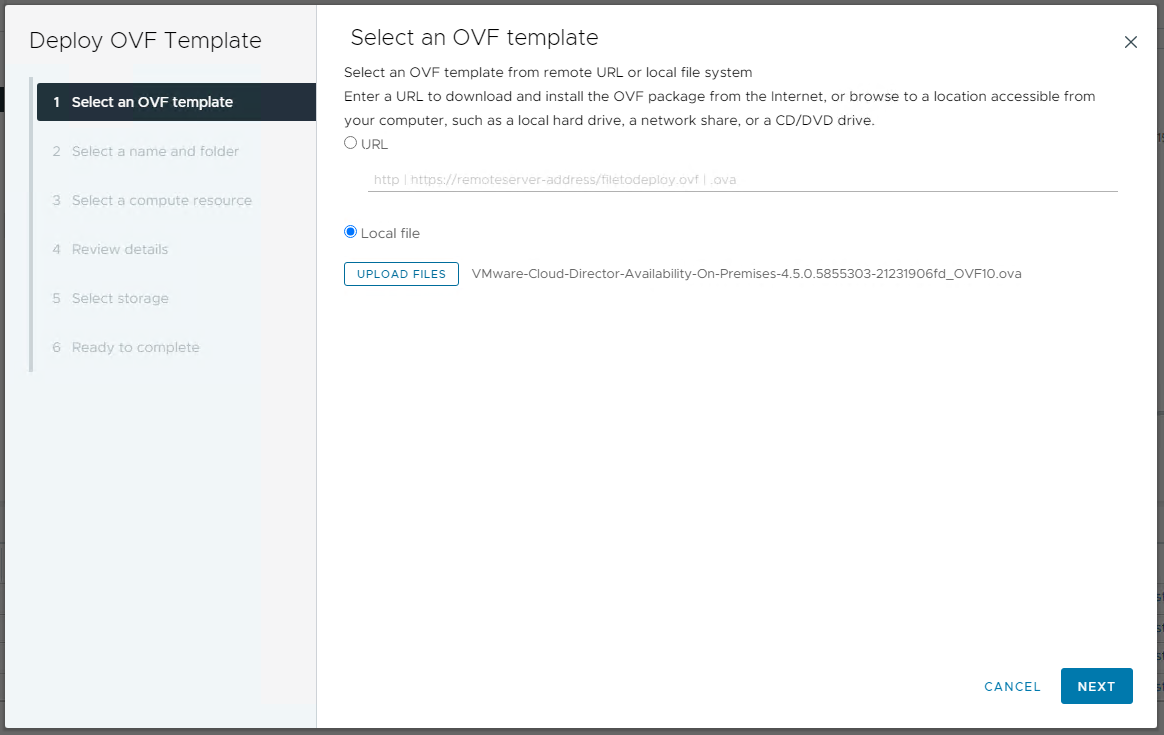
During configuration, the role “On-Premises to Cloud Director Replication Appliance “ is selected:
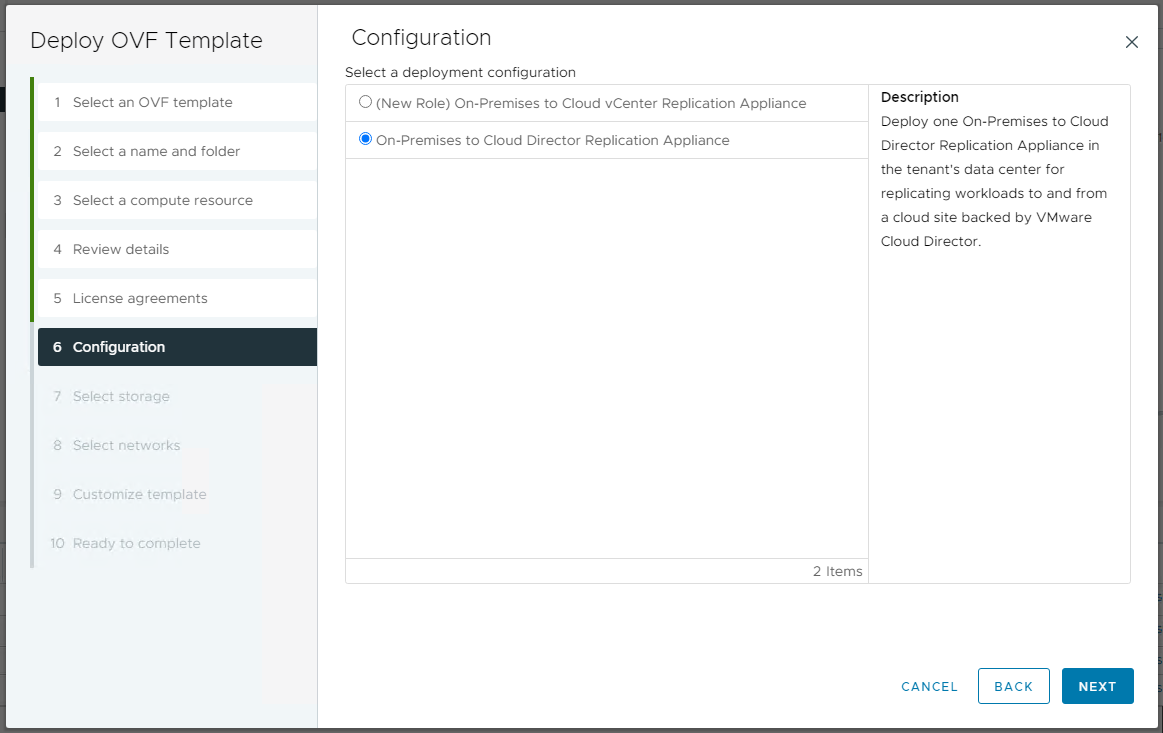
We proceed by configuring the basic network settings and set up the virtual machine.
Step 2
VMware Cloud Director Availability virtual machine configuration
Once the new virtual machine responsible for replication has started up, we enter the management console. This is normally accessible at https://[IP address]/admin
On first start-up, we are asked to change password.
Then click “Run the initial setup wizard “.
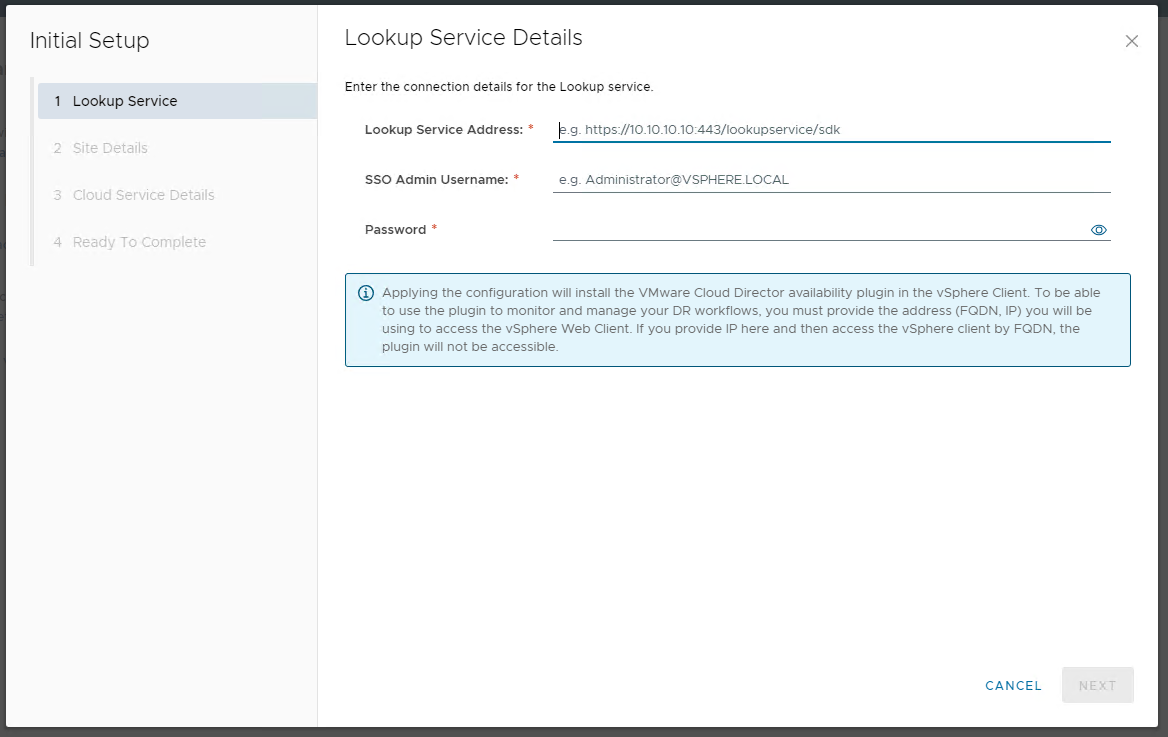
On the first page, you enter your vCenter login details:
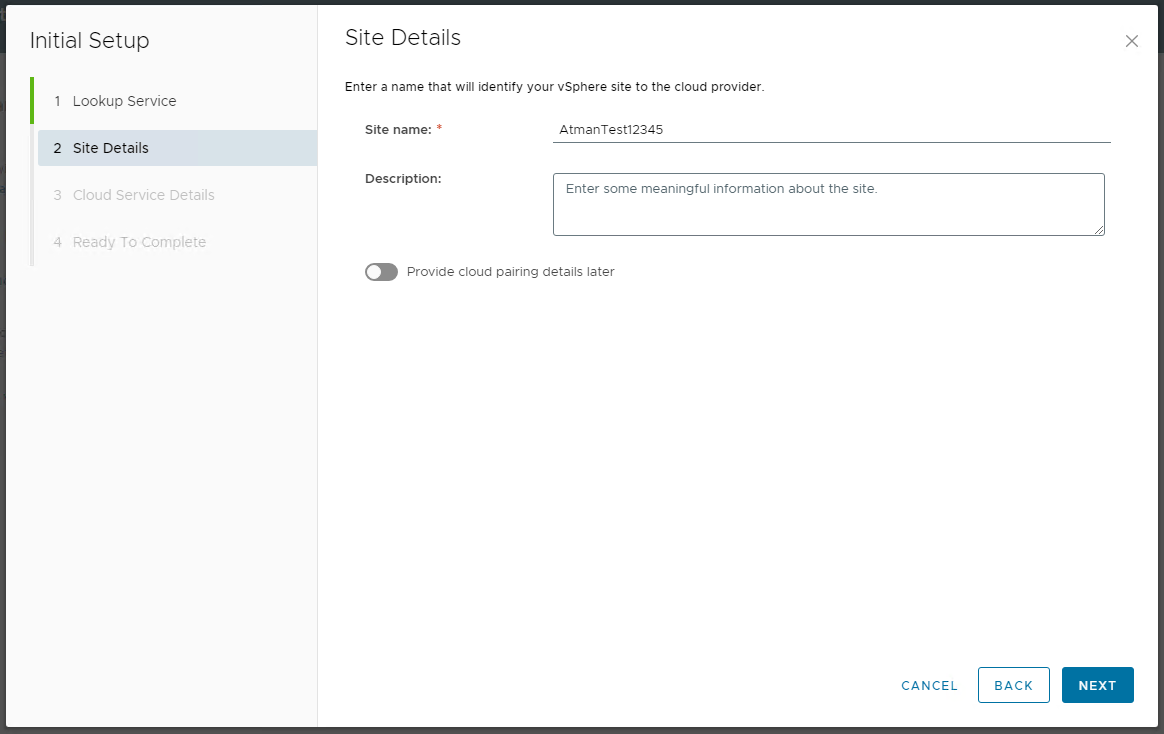
On the next page, we set a name for the connection:
And we configure the connection to the VMware environment on the Atman side:
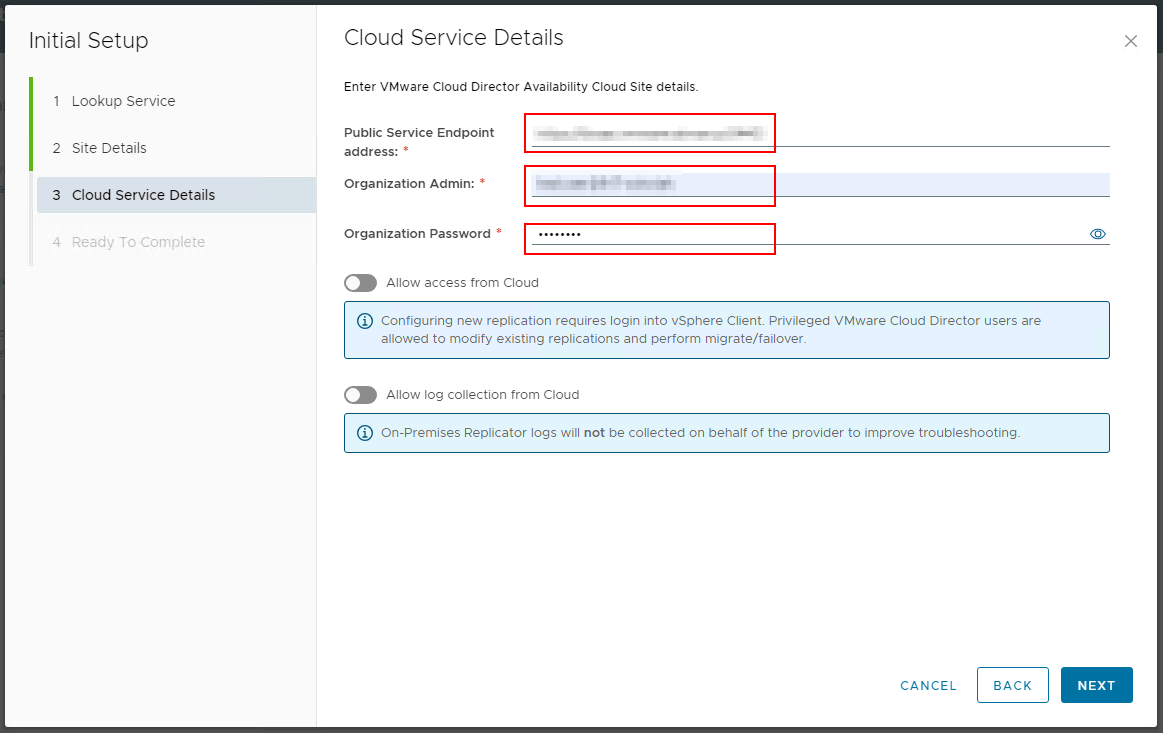
Public Service Endpoint address: https://draas.vmware.atman.pl:9443
Organization Admin/ Organization Password: we provide the dedicated access data provided to you for synchronisation in the format user@tenant name shown in the top right-hand panel
Allow access from Cloud: tick to be able to configure synchronisation from the Atman VMware Cloud panel
We are completing the configuration process and already have a connection available between our environment and the Atman VMware Cloud environment.
We can verify this on the main “Dashboard “ Cloud Director Availability application:
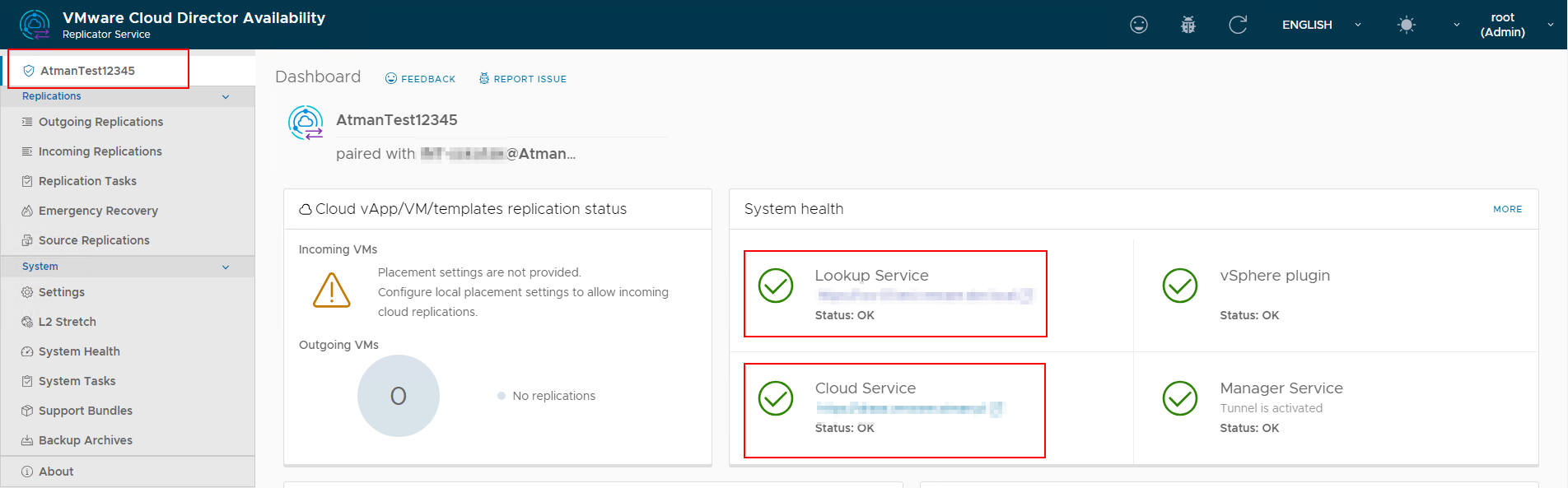
Lookup Service: status of connection to vCenter
Cloud Service: Connection status to Atman VMware Cloud
In the next step, the synchronisation configuration process can begin.
Step 3
Configuration of virtual machine replication
Synchronisation can be performed from the interface exposed to the referenced VMware Cloud Director Availability virtual machine, or from the Atman VMware Cloud panel.
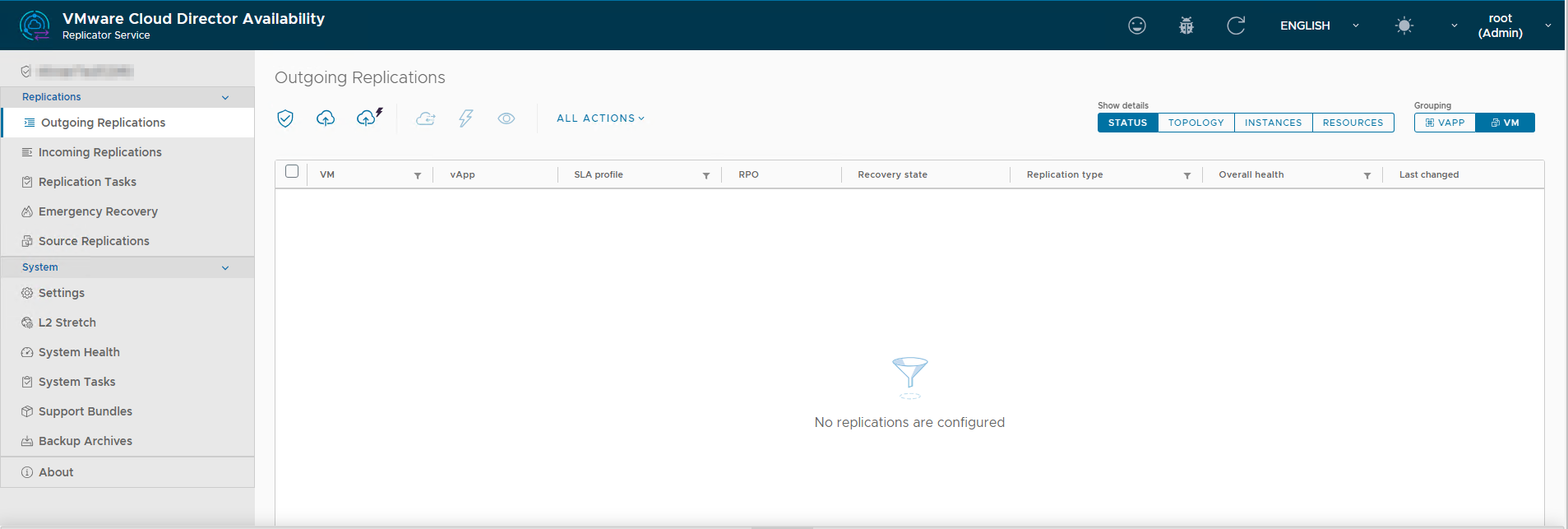
From within the virtual machine, select the ** Outgoing Replications tab:**
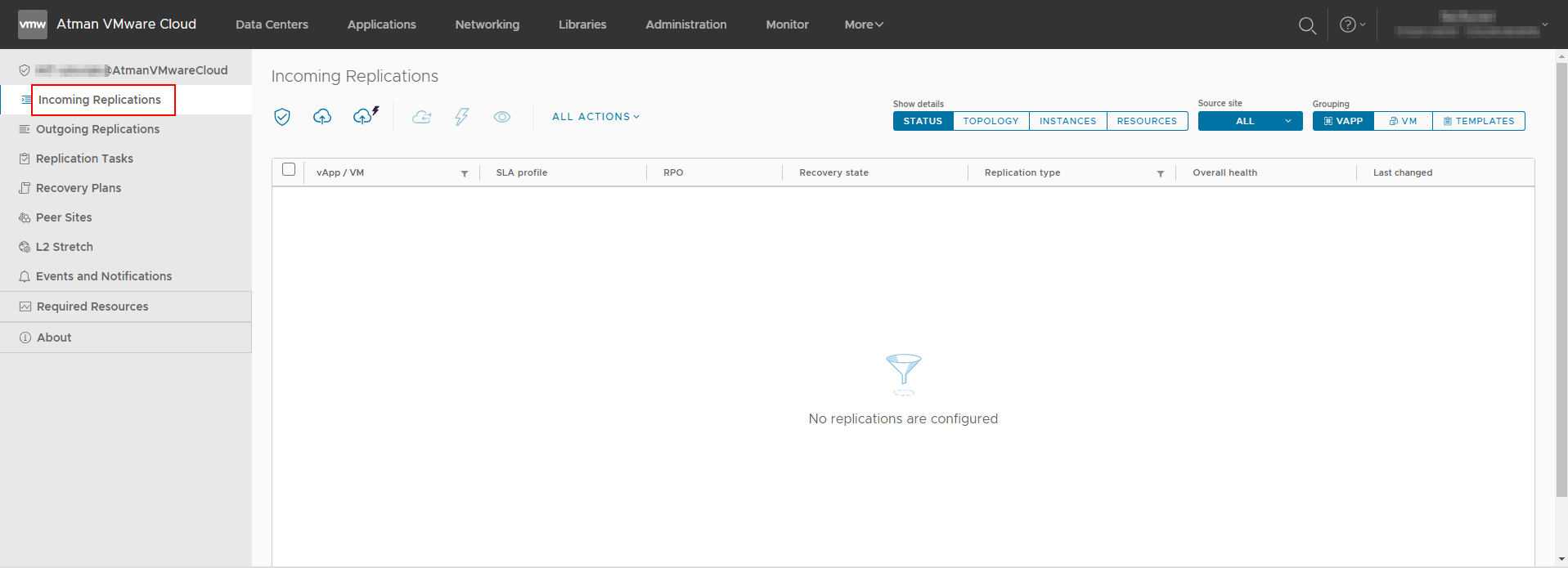
From the Atman VMware Cloud panel, go to the tab:

And by selecting the “Incoming Replications “ tab:
A description of the migration process and available features can be found by clicking on this link