Creating and editing virtual machines (Virtual Machines)
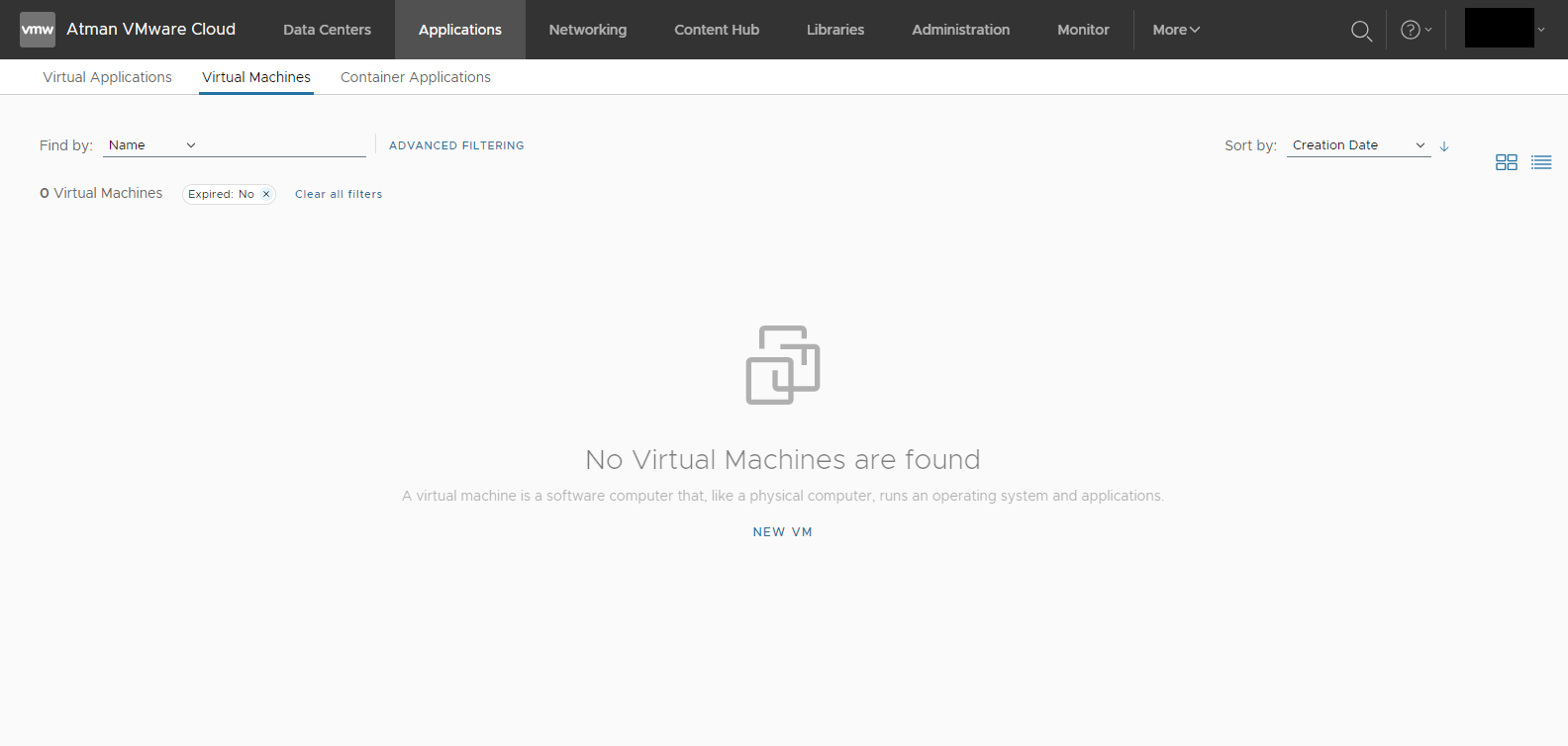
Go to the Applications -> Virtual Machines tab and select NEW VM.
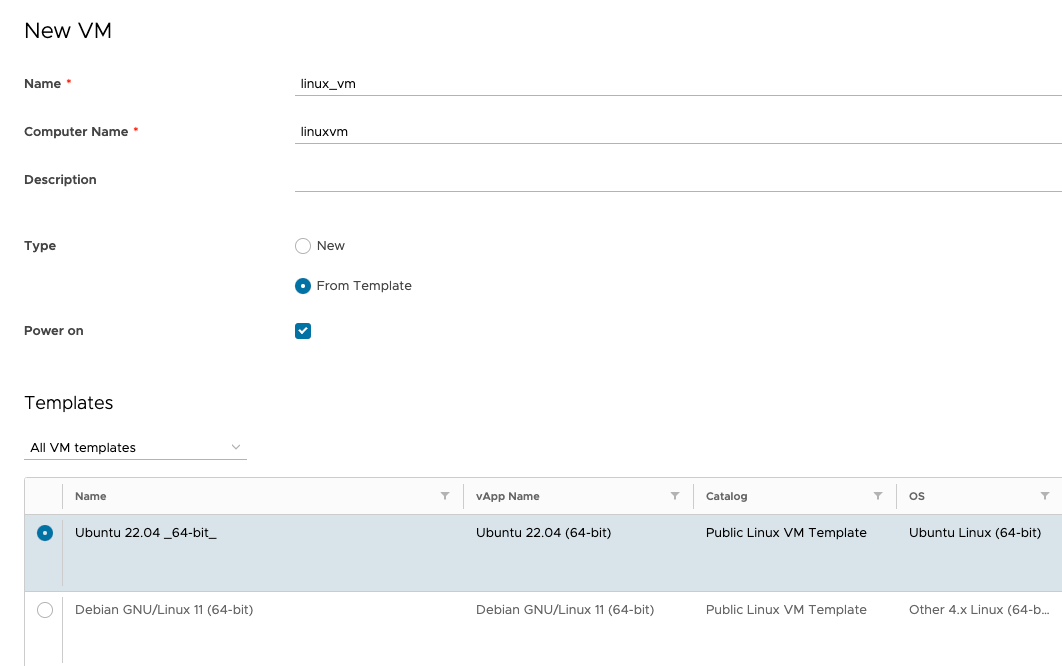
Type in the virtual machine name and hostname and select the machine template from the available directories - for example Ubuntu 22.04. Uncheck the checkbox if the machine is not to be started once it has been referenced.
Select the Storage Policy to be used by the virtual machine and its size from the drop-down list.
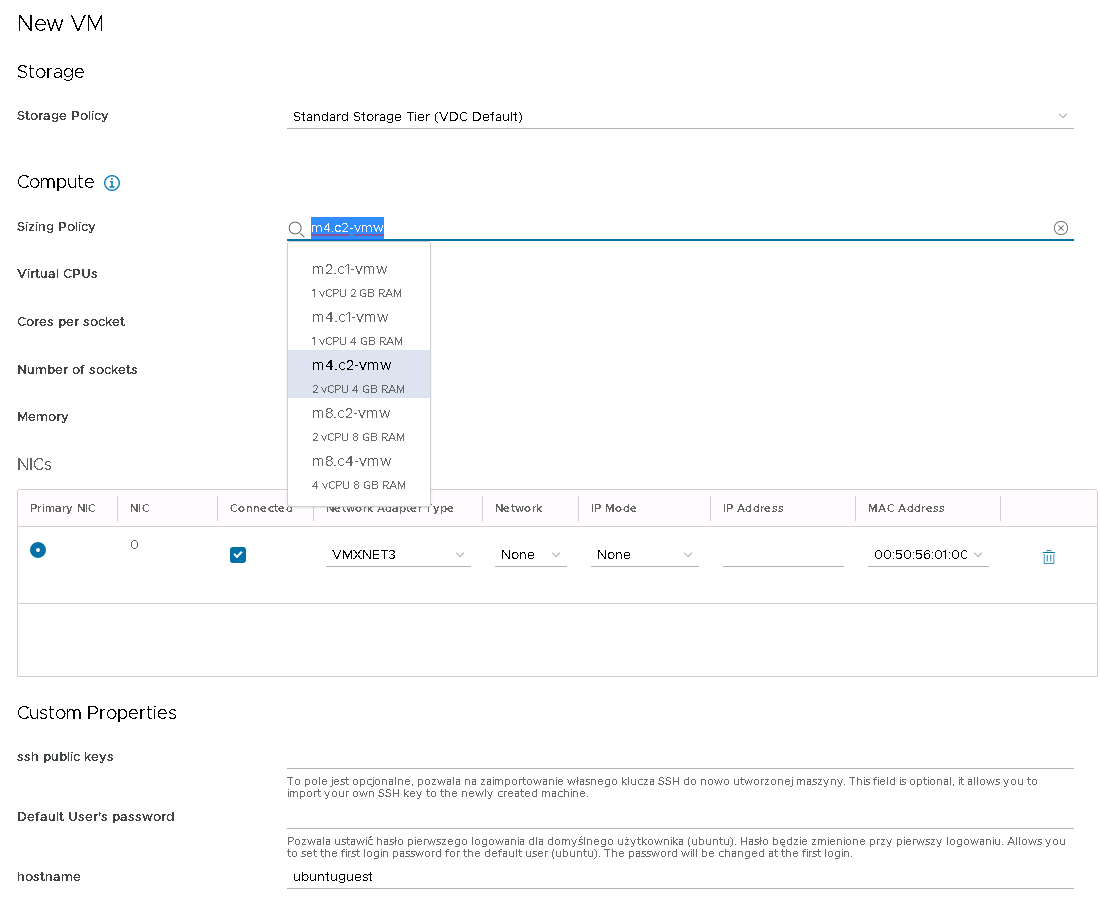
For the network interface select the network to which it is to be plugged in and one of the methods of assigning an IP address:
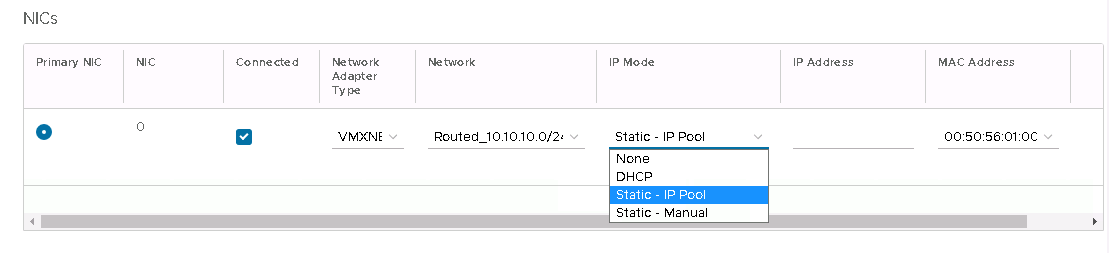
DHCP - an IP address will be assigned by the DHCP service on the network,
Static IP Pool - the first free IP address from the created pool in the network will be selected,
Static - Manual - allows manual assignment of IP address
Optionally, Custom Properties can be used to, for example, import the public key of the machine from which the connection will be made, set the user password or hostname.
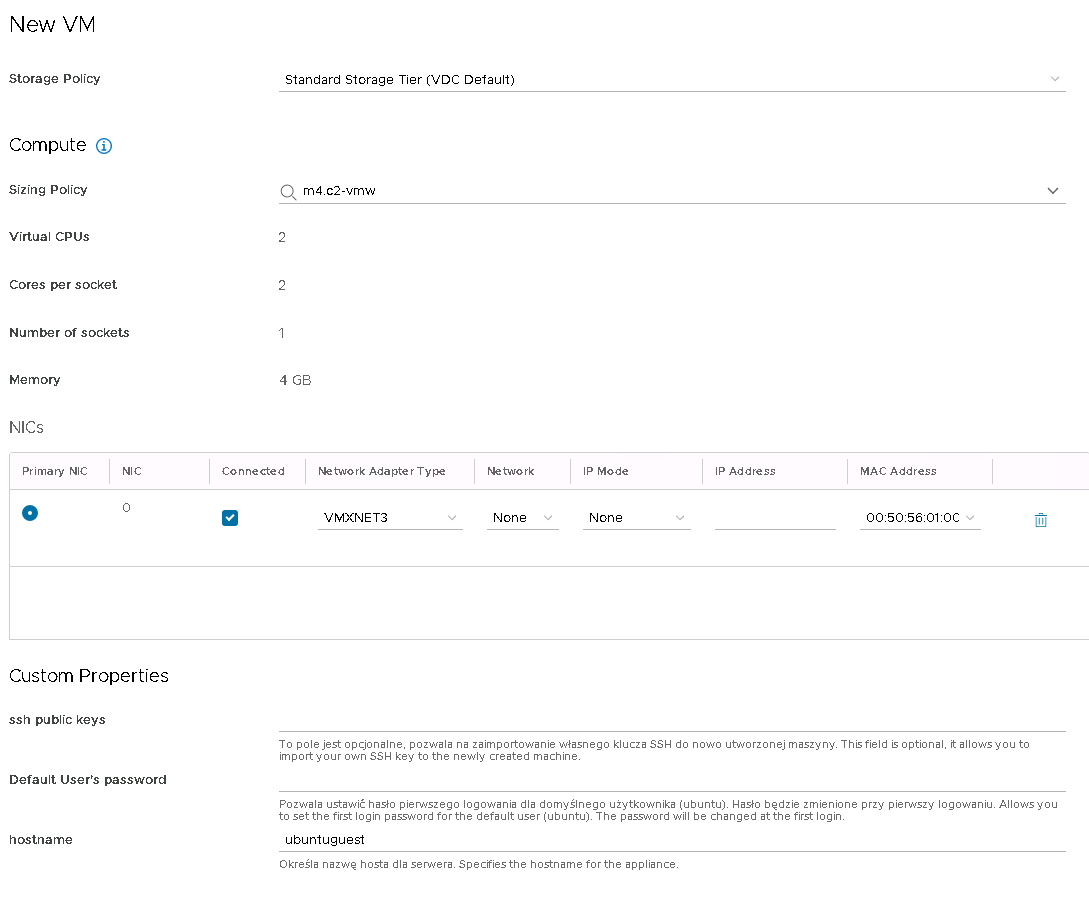
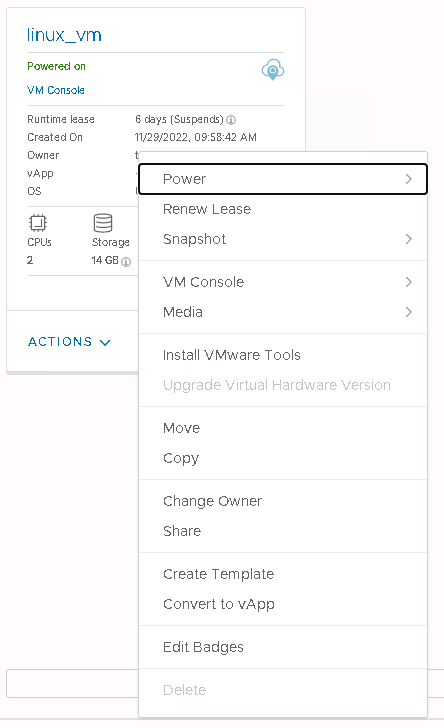
The appointed virtual machine will appear in the Virtual Machines tab. Use the Actions button to perform actions on the virtual machines, e.g. start-up, snapshots, etc.
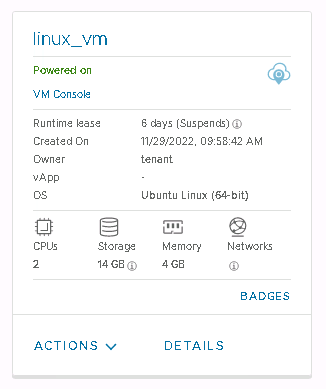
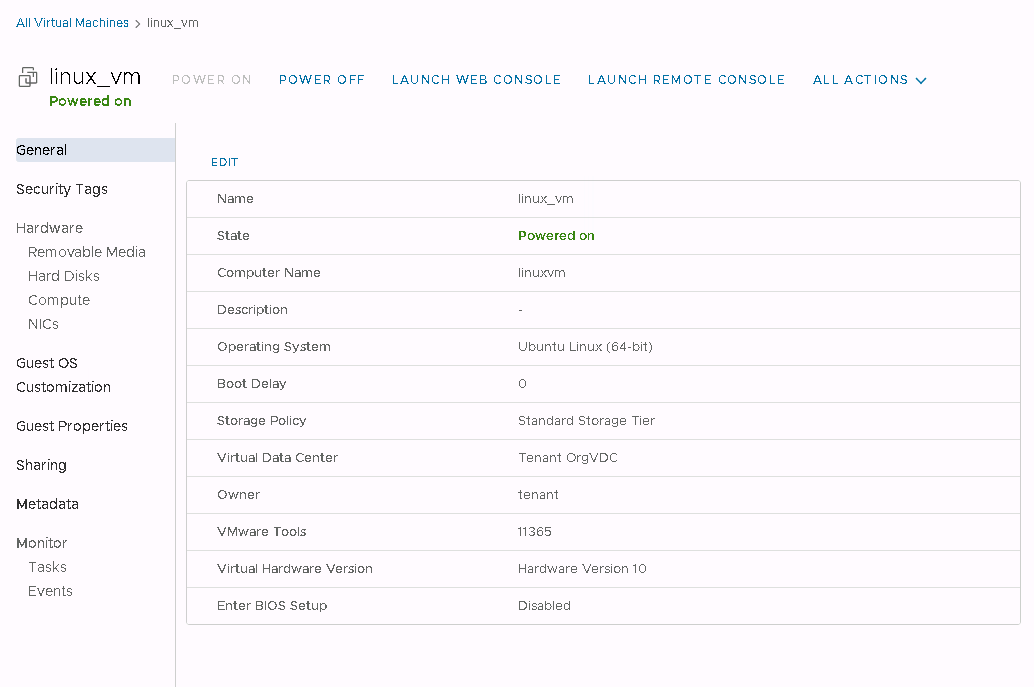
Start editing the virtual machine by selecting the DETAILS button. The General tab allows you to edit basic settings, such as changing the name of the machine, changing the Storage Policy, description or start-up delay.
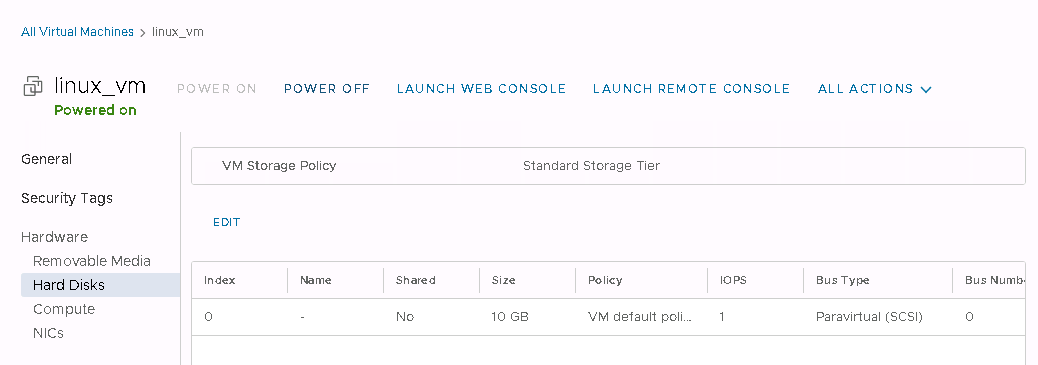
Edit disks, add, expand from the Hard Disks tab.
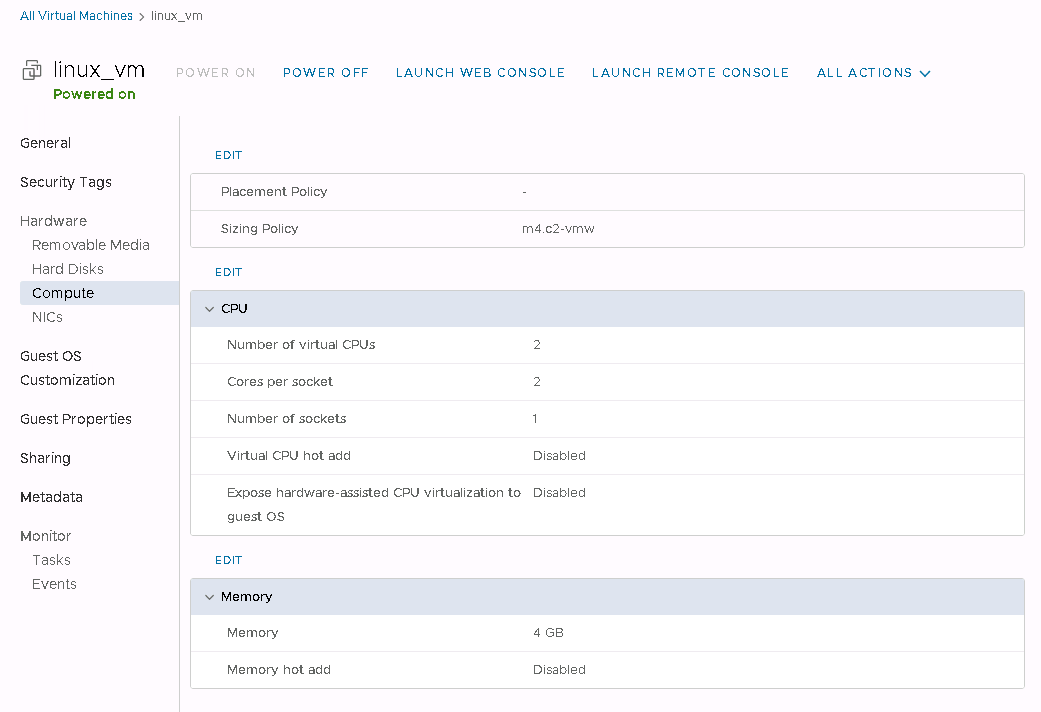
The Compute tab allows you to change the size of the virtual machine - Sizing Policy. Changes should be carried out on a switched-off machine.
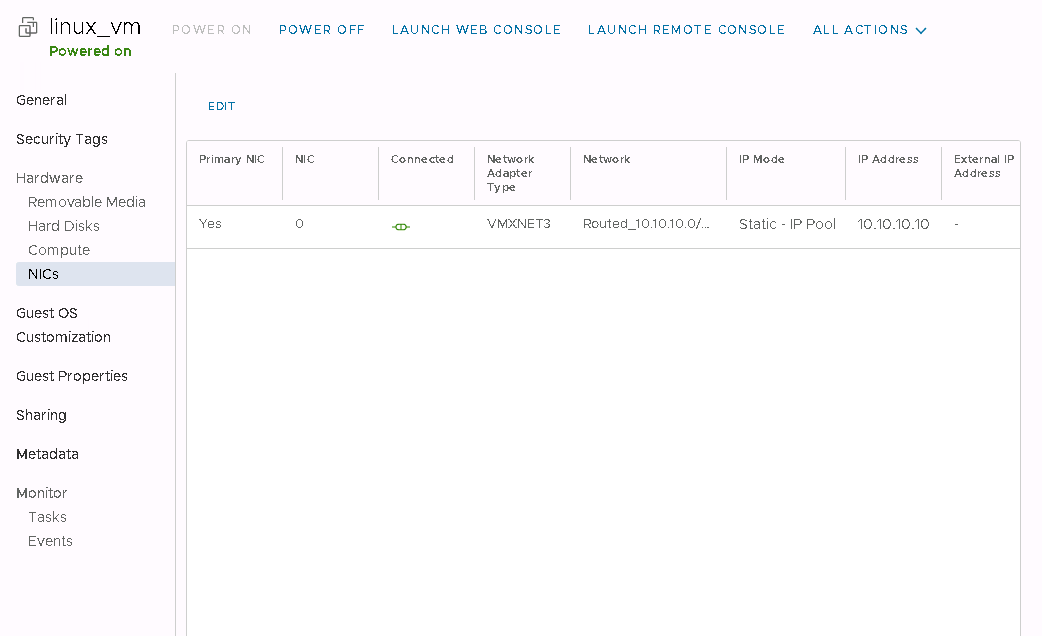
The NICs tab allows you to edit the network interfaces or add more.
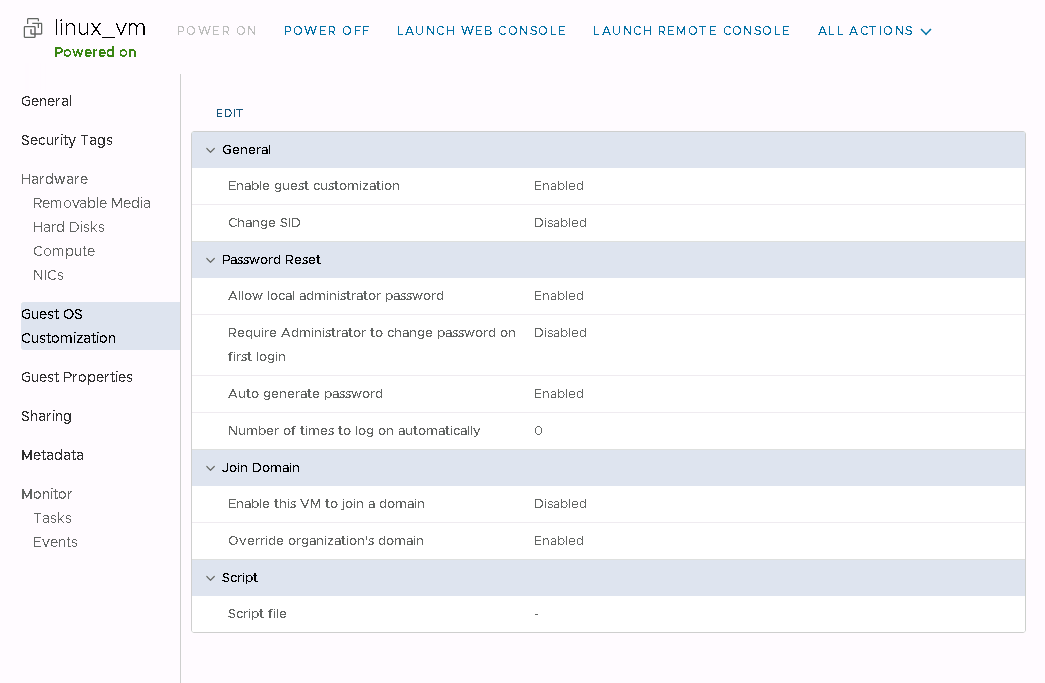
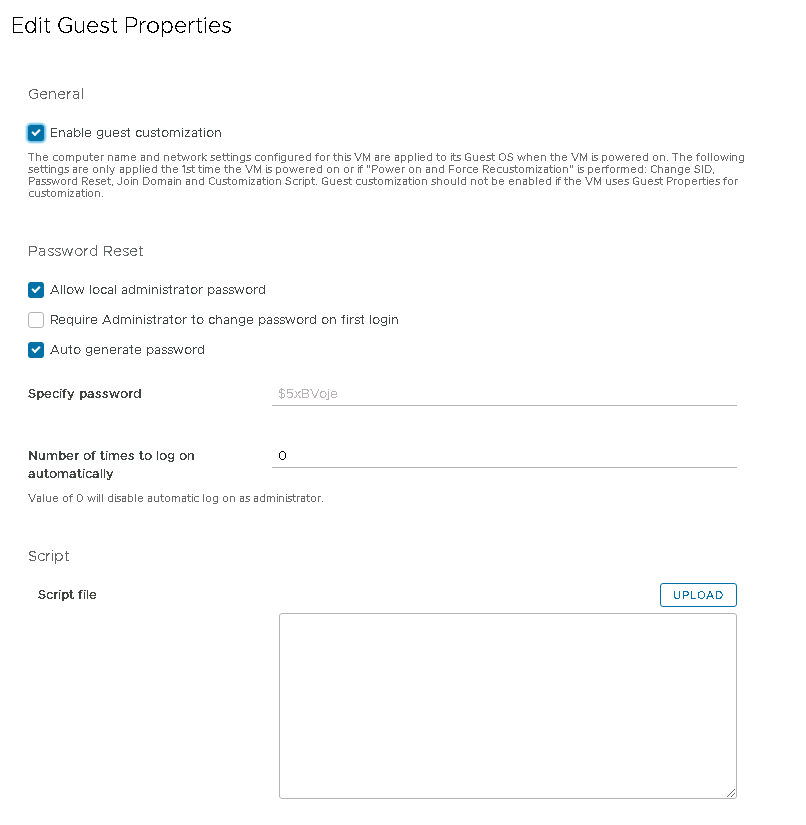
When the virtual machine is started, the Guest OS Customisation process is executed, which prepares the virtual machine according to the specified settings. The random initial password for the
rootuser can be viewed by editing these settings in the Specify password field.