Creation of Firewall rules
The virtual machine created is by default subject to the default firewall rule, blocking North-South traffic. You must create a SNAT rule (previous point) and a firewall rule to allow the VM to access the public network.
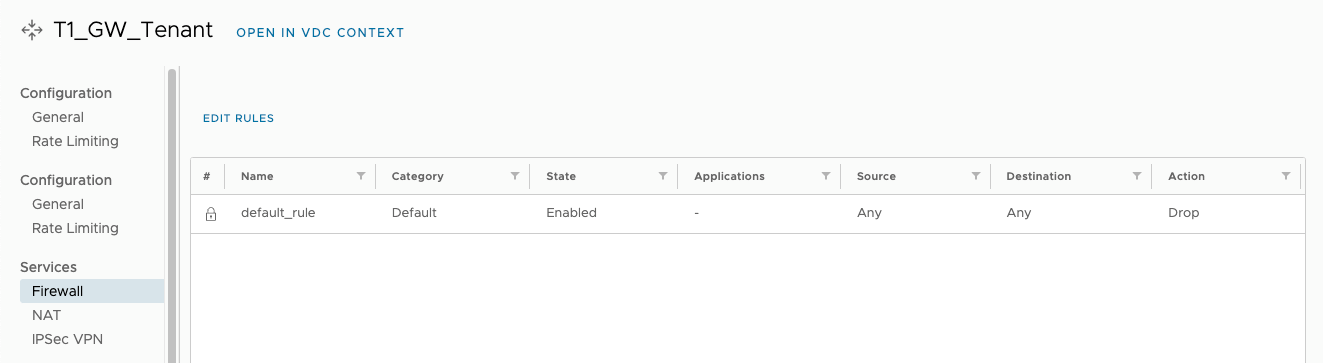
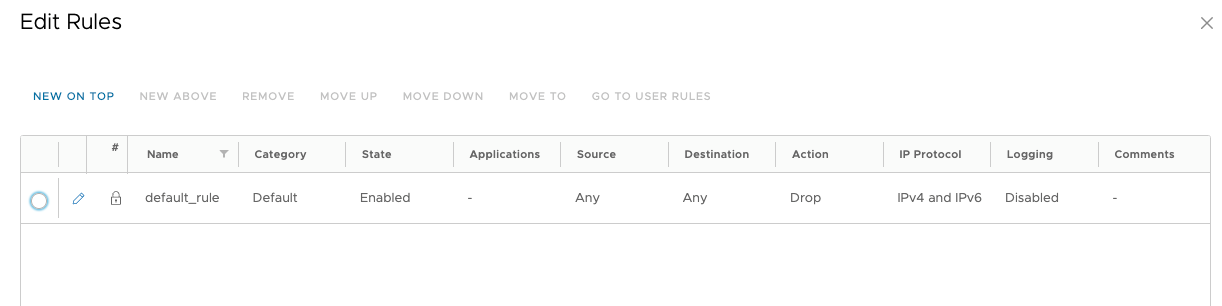
From the router T1, navigate to the Firewall tab. By default, the Any <-> Any rule is available with the DROP action.
Firewall rules are created based on 2 objects:
IP Sets - IP ranges or single IP addresses that can be used as Source or Destination for a rule.
Static Group - an indication of the virtual network that allows the rule to be applied to all virtual machines associated with that network.
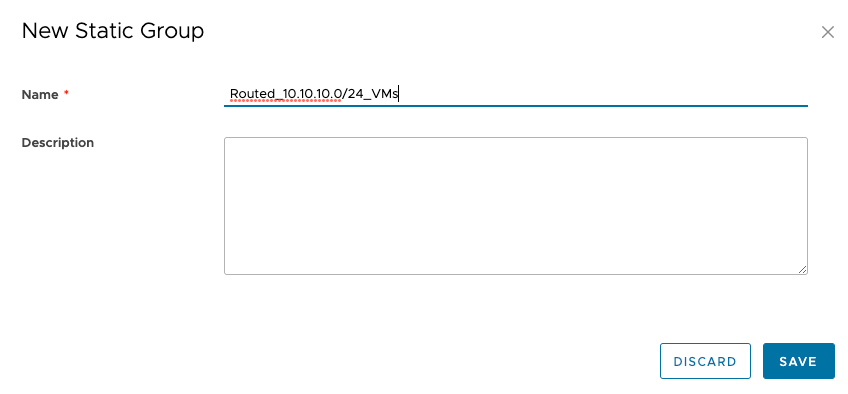
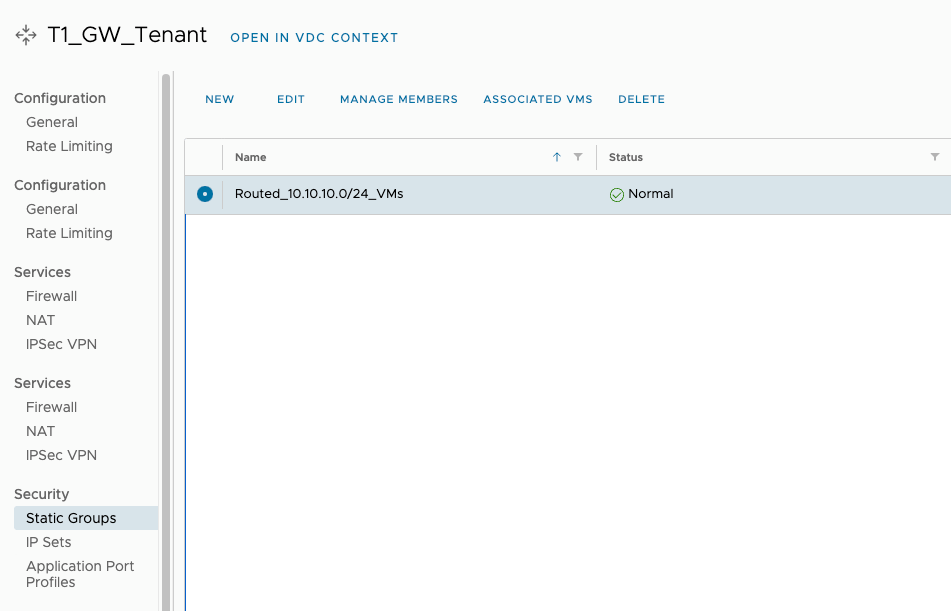
Go to the Security -> Static Groups tab to create a VM association with the Routed network in use, select the NEW button, enter the name Static Group and confirm with the SAVE button.
Select the Static Group created and select the Manage Members option to add the network containing the virtual machines to be subject to the Firewall rule.
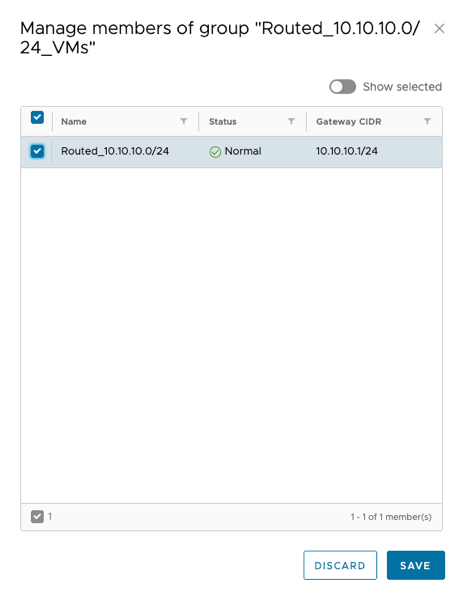
Select the network from which the machines are to be included in the rule and select SAVE
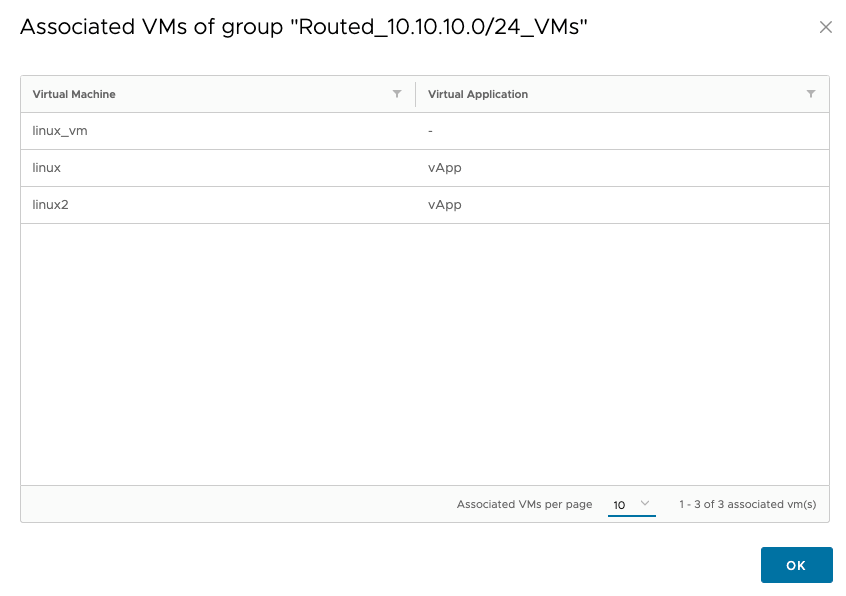
By selecting Associated VMs, we can view which machines are associated with the created Static Group.
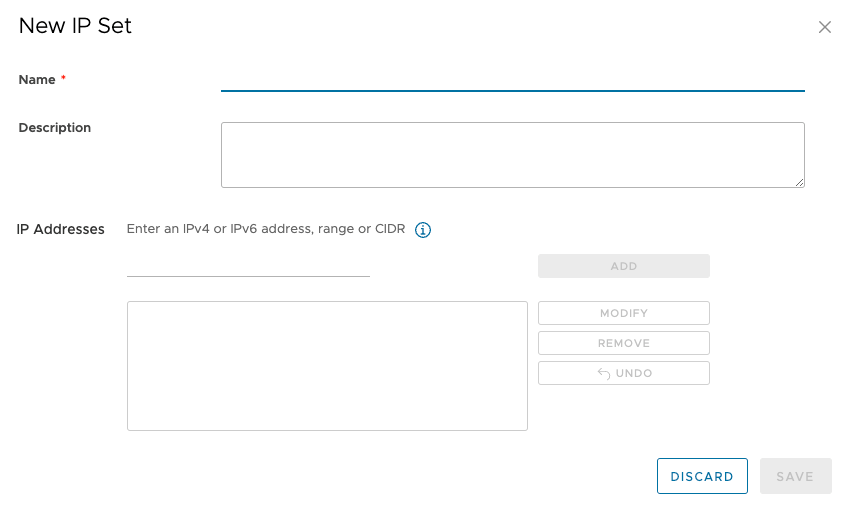
If you wish to use an IP Set, select Security -> IP Set and the NEW button. Then enter the name and IP address or range or CIDR to be used in this IP Set, and in turn in the Firewall rule.
After creating a Static Group or IP Set, go to the Firewall tab and select the Edit Rules option. Then select NEW ON TOP in the next window, which will create an entry for the new Firewall rule.
Enter rule name and using the pencil option select:
what type of traffic is to be allowed within the rule (Application)
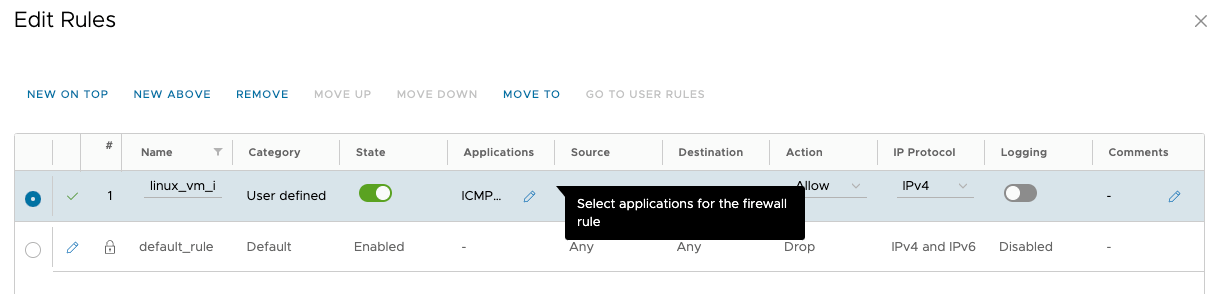
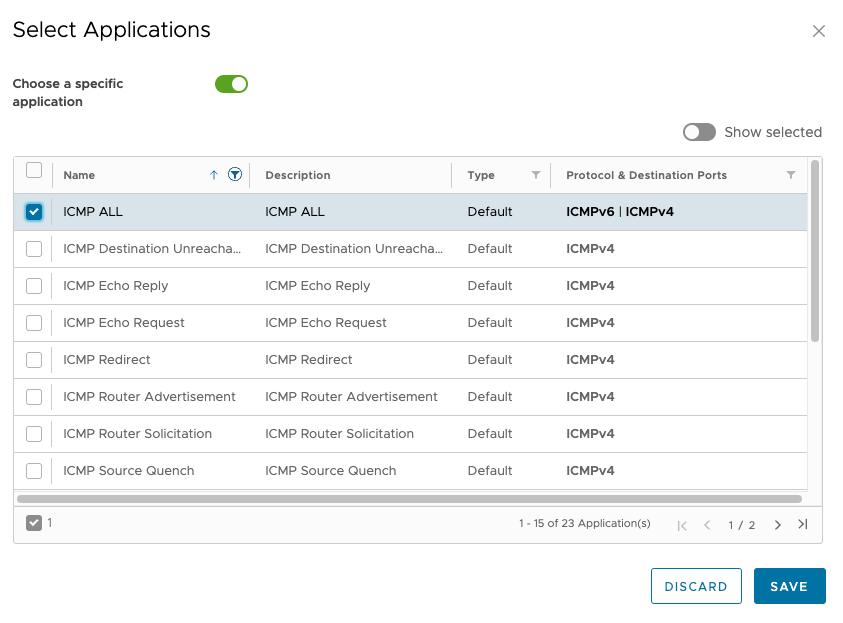
source as a created Static Group

target as Any for public network access and share type for ALLOW.

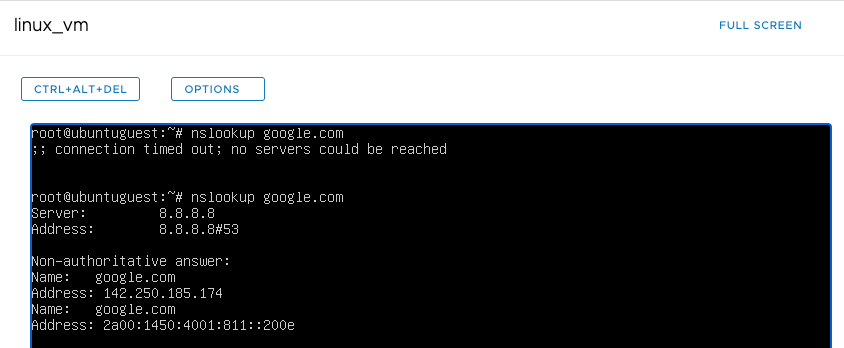
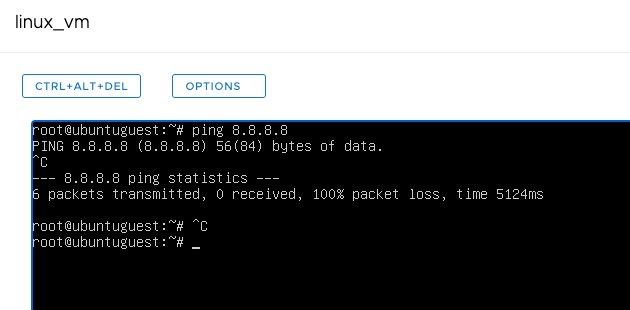
The VM already has ICMP traffic to the public network, e.g. to 8.8.8.8.
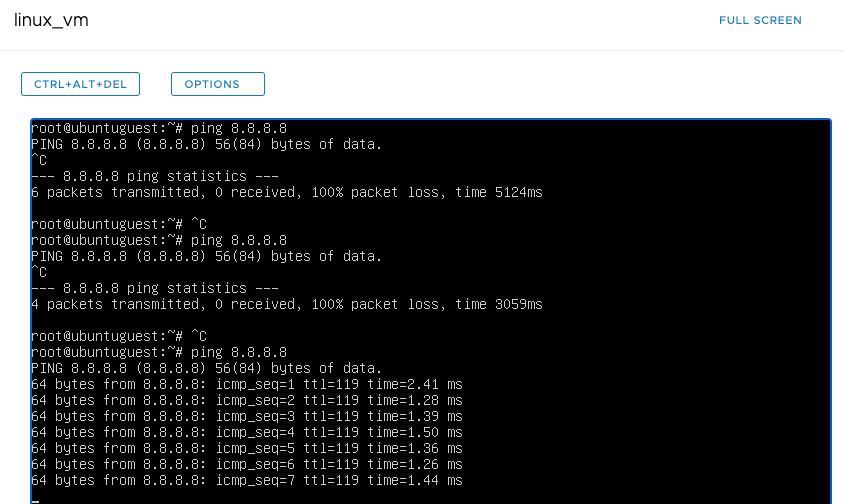
Unfortunately, the machine does not have the ability to resolve names on the public network.

Edit the previously added rule using the pencil button.
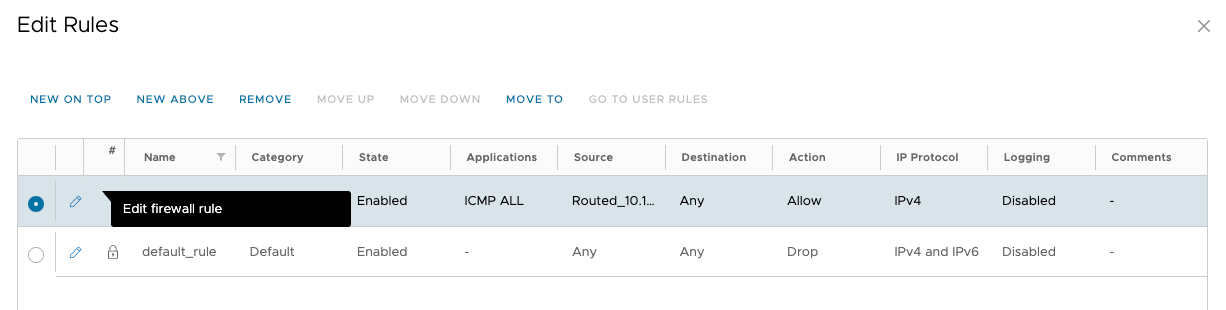
Select the edit option of the Applications section for the rule created.
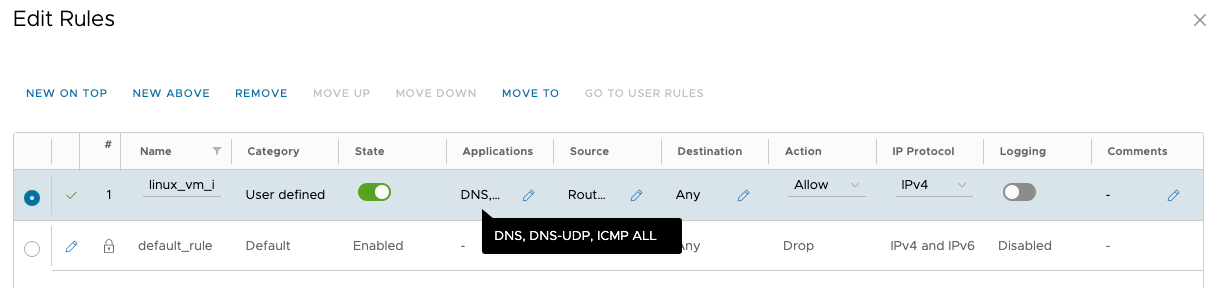
Select DNS traffic type and validate the firewall rule.
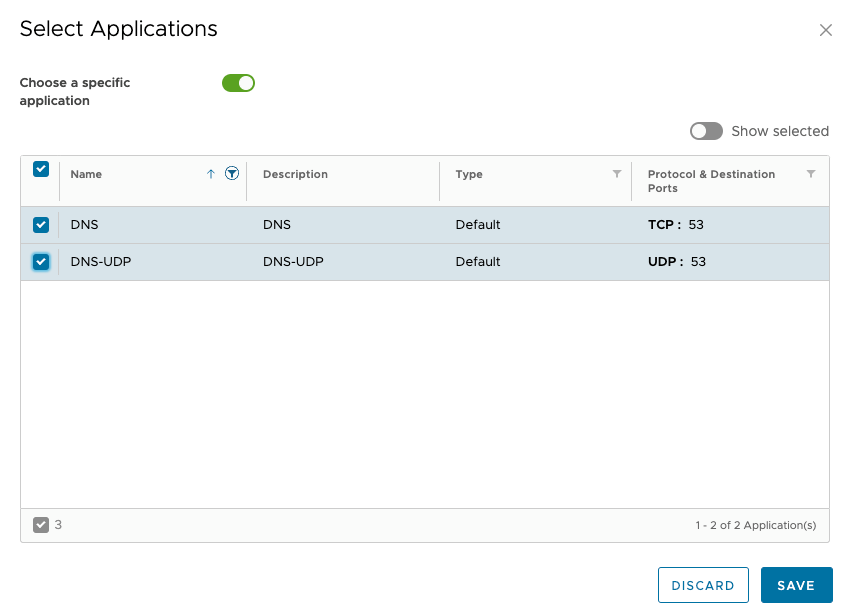
The VM will have DNS-based name resolution on the public network (8.8.8.8).