Logging into the administration panel
Enter https://panel.backup.atman.pl in your web browser.
After logging in, we go to the main page of the administration panel.
Choice of language
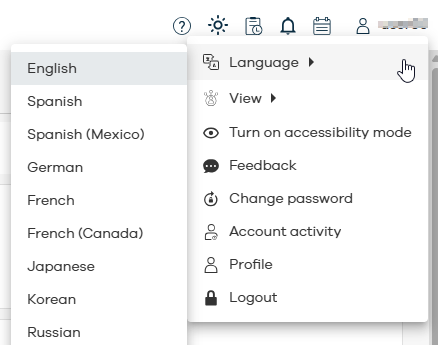
It is required to use the administration panel in the English language version. The language of the panel is defined in the user menu available in the upper right corner.
Downloading the agent installation package
To download the installation packages, go to the Download Centre tab.
To download the package of interest, click on the “Download” button:
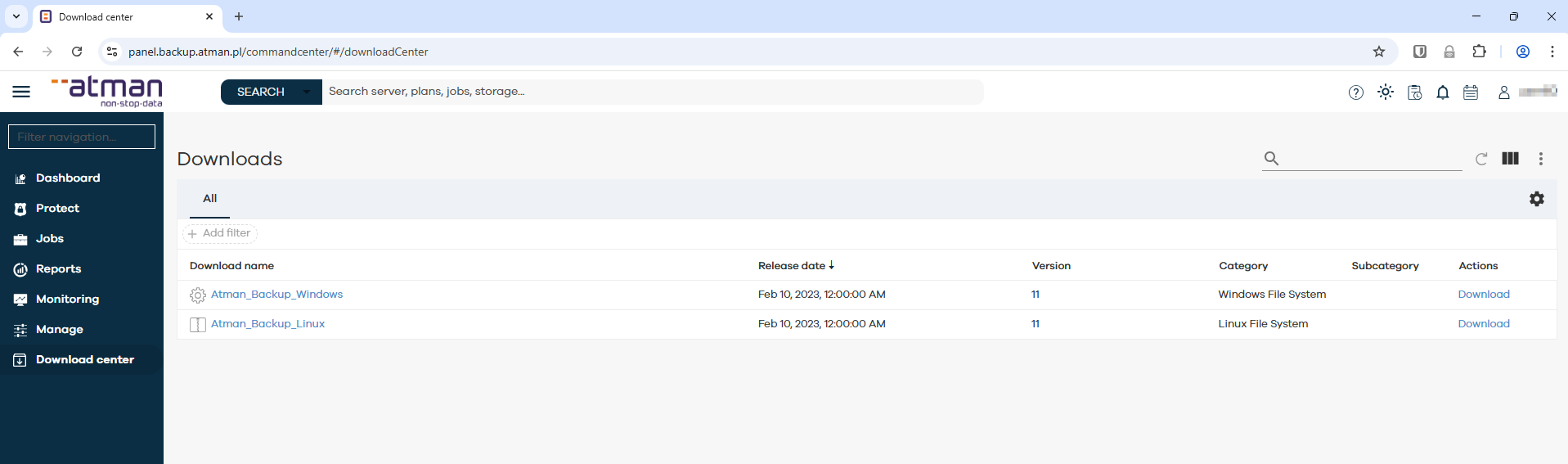
We choose where to save the package, then once downloaded, place it on the machine to be registered with the Atman Backup service, then install it according to the instructions described later in this guide. The installers provided are basic agents with which, we can install further agents.
Agent installation for Windows operating systems
During installation, the machine on which the agent is installed may need to be restarted. The restart prompt is presented with a message.
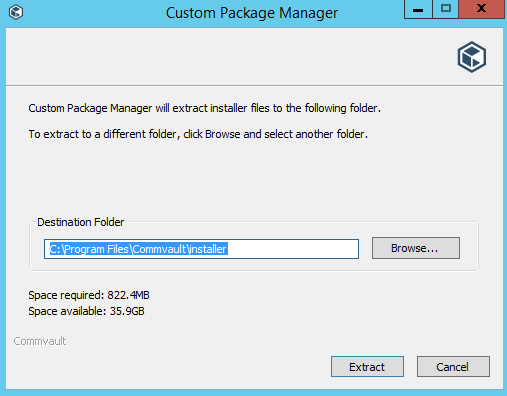
Launch the agent installer and select the installation folder:
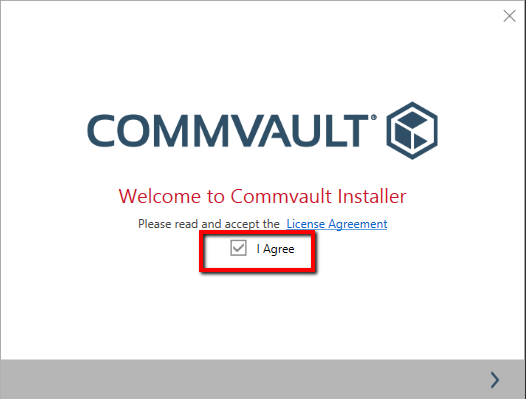
The licence agreement must be approved:
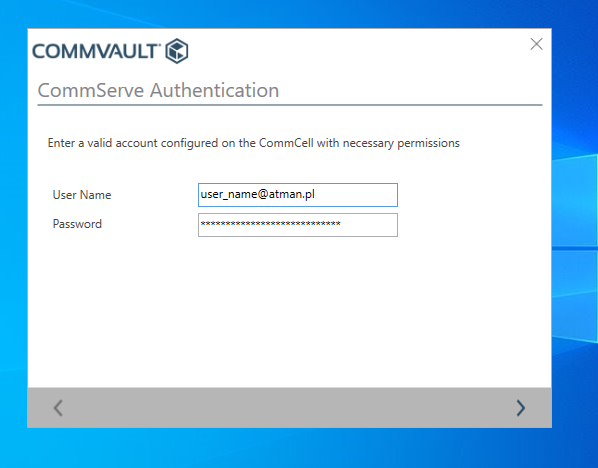
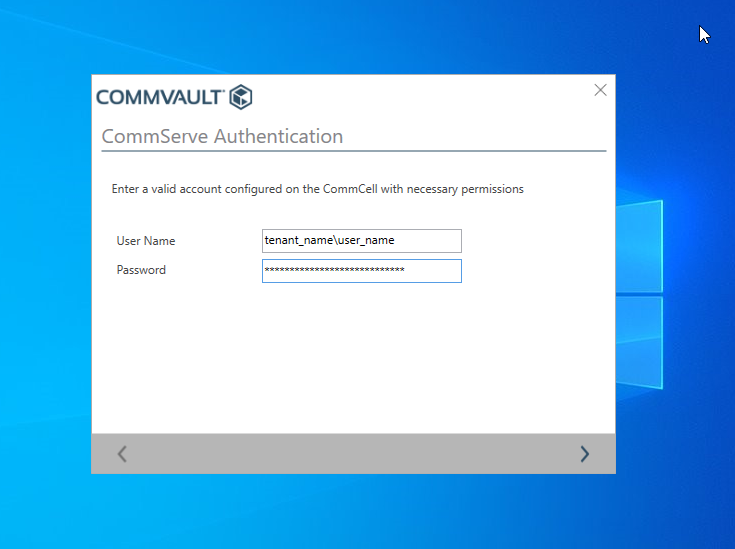
We provide the details of the user registered with the Atman Backup service.
Authorisation can be done via email address
Or by user in the format user_name
Once the installation is complete, click Finish:
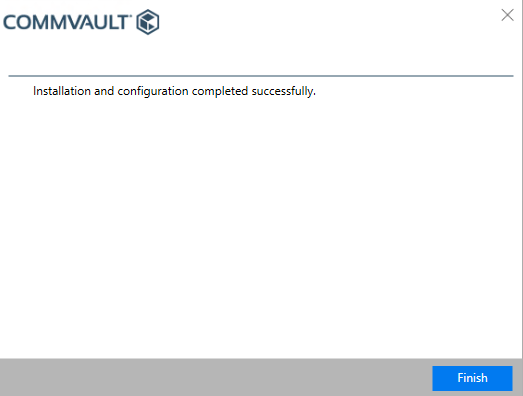
The agent has been installed and added to the environment. Once the package has been installed, agent configuration and the setting of specific backup tasks are performed from the administration panel (see later).
Agent installation for Linux/Unix operating systems
During installation, the machine on which the agent is installed may need to be restarted. The restart prompt is presented with a message.
After downloading the package, place it on the machine and start the installation process.
The installation package for Linux/Unix systems can be downloaded using wget from https://docs.atman.pl/baas/_static/pkg.tar. Unpack tar -xvf pkg.tar.
Before running the installer, it is a good idea to change the permissions of all files in the pkg directory (chmod -R 777 pkg).
Navigate to the directory where you unpacked the installation packages and, with administrator rights, execute the command:
sudo ./cvpkgadd
Then enter Client Host Information (you can leave the default name):

Then Client name which is the name of the client in the environment (you can leave the default name):

We provide the details of the user registered with the Atman Backup service.
Authorisation can be done via email address
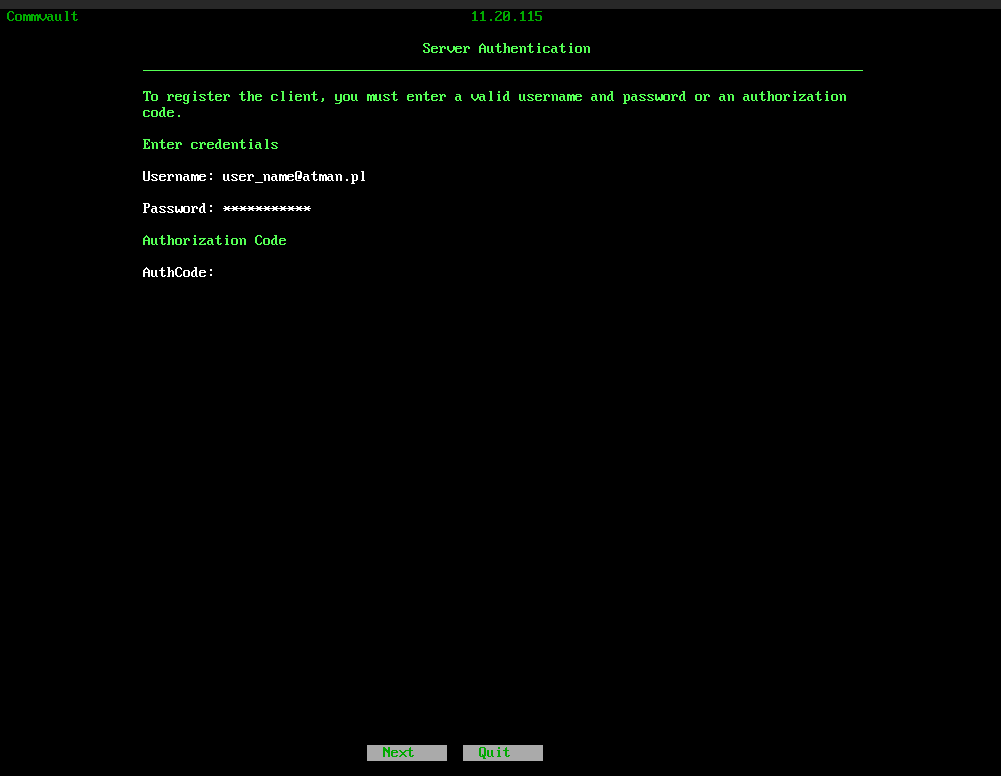
Or by user in the format user_name
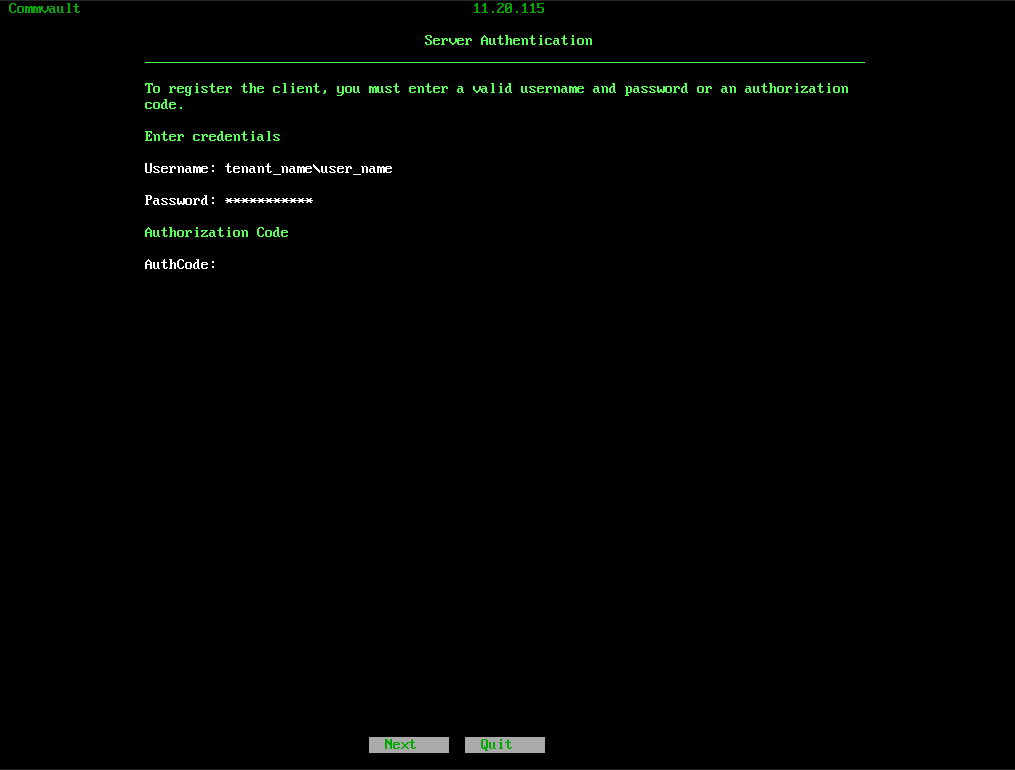
The AuthCode: field is optional and can be left blank.
We are waiting for the installation to complete successfully. The result of the installation will be the appearance of a new client with the Linux File system agent in the administration panel.
The agent has been installed and added to the environment. Once the package has been installed, agent configuration and the setting of specific backup tasks are performed from the administration panel (see later).