Restore the entire virtual machine
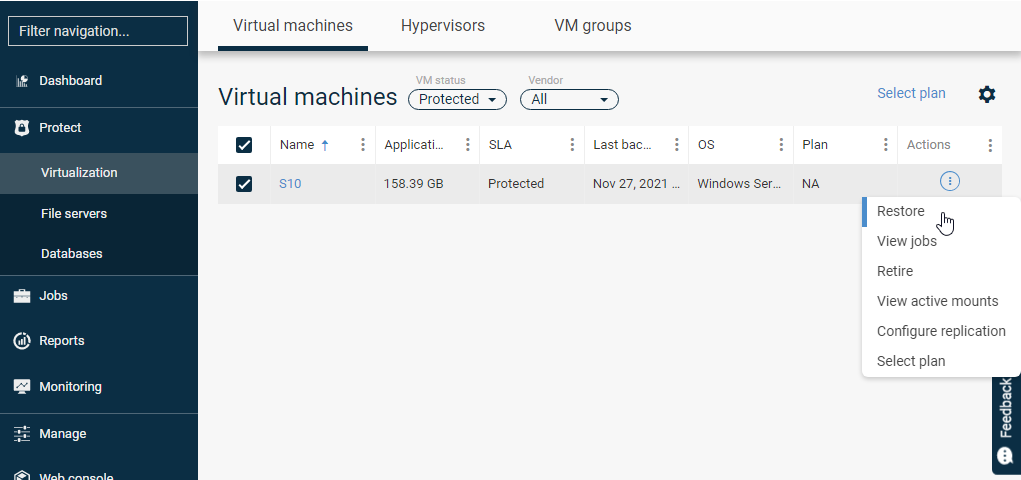
To restore a single virtual machine from a backup, go to Protect -> Virtualisation in the main menu and select the machine you want to restore, then click Restore:
A window appears to select the type of playback:
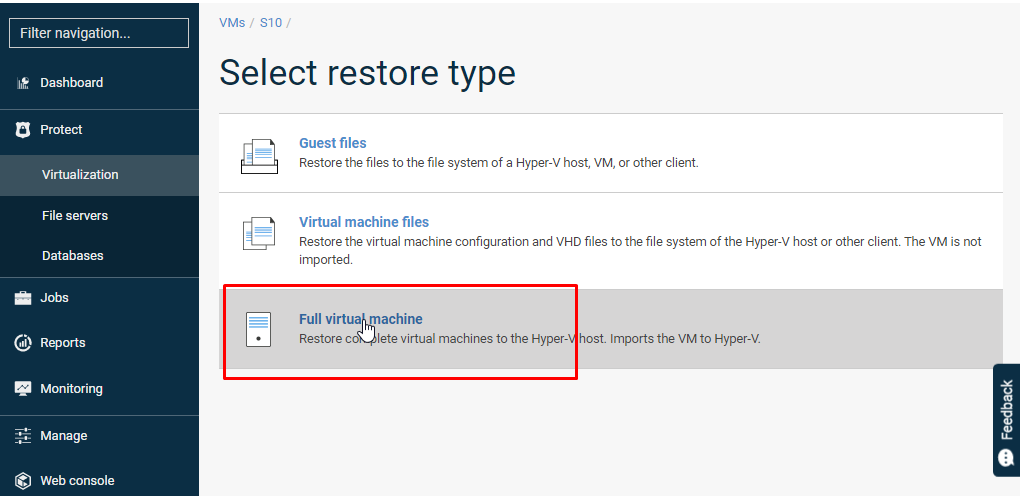
The Full virtual machine option is selected.
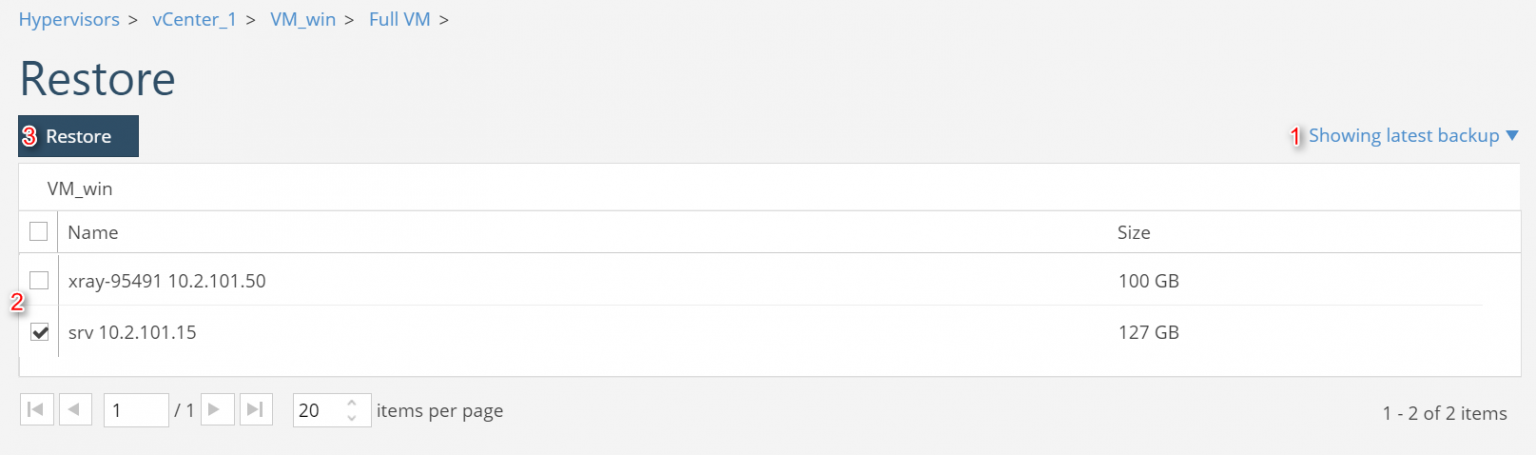
We then set the time criterion from which we want to restore (1), indicate the machine we want to restore (2) and use the Restore (3) button to proceed to the next opening options:
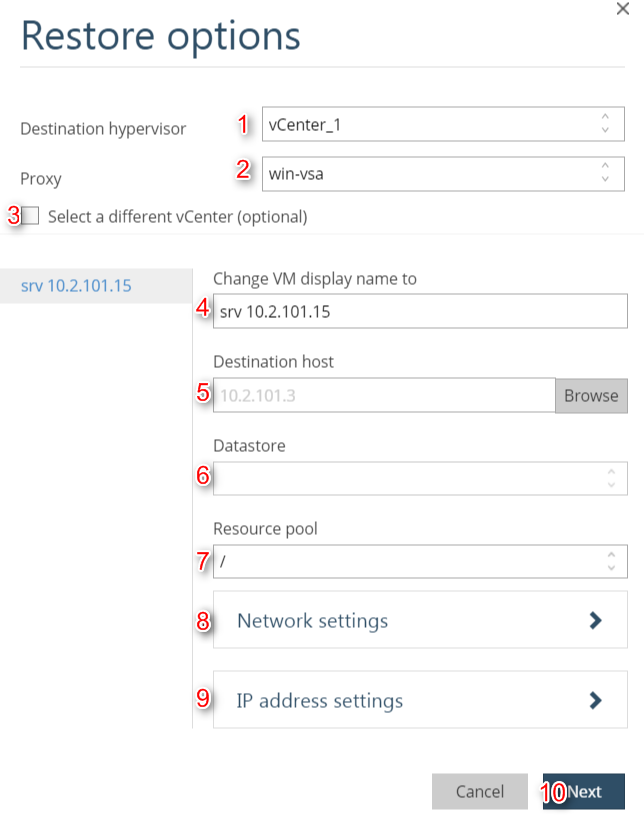
In the next step, indicate from the drop-down list (1) the target virtualisation client on which you want to recreate the virtual machine, if it is not configured on the system, using the Select a different vCenter (optional) option. We select a client with an installed Virtual Server Agent (aka VSA) that will mediate the restore operation (2). We select a name for the recreated machine (4), indicate the target host (5), datastore (6) and Resource pool (7). If required, network settings (8 and 9) can be defined. Save the settings using the Next (10) button:
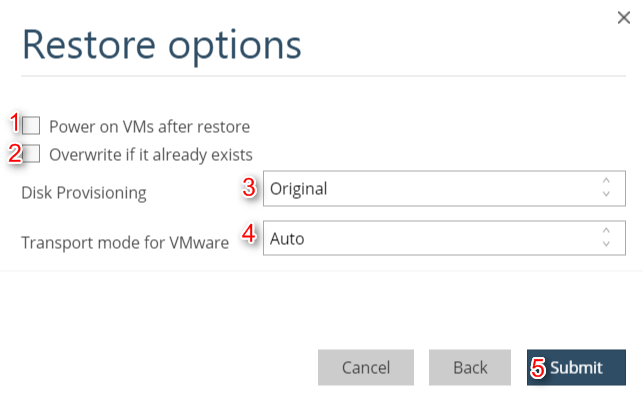
When we move on to the next recovery options, we can indicate that the machine will be switched on immediately (1) and overwritten if one already exists in the (2) environment. In addition, we indicate the Disk Provisioning method for the machine’s disks after recovery and Transport mode (3 and 4). With the Submit button (5), we start the restoration:
We receive a message about the start of the playback task:

The job can be monitored in the Jobs section:

The status Completed indicates the completion of the restoration.