Restore a single file from a virtual machine
NOTE: In the case of granular recovery of individual files from a virtual machine (Guest files option), there are limitations for Vmware and Hyper-V as described in:
for Hyper-V http://documentation.commvault.com/commvault/v11_sp9/article?p=products/vs_ms/t_vhypv_guest_file_restore.htm
The service allows individual files to be recovered from the operating system using an installed VSA-type client. For questions and problems, please contact Atman.
The following description shows the implementation of a restoration based on a VMWare environment backup.
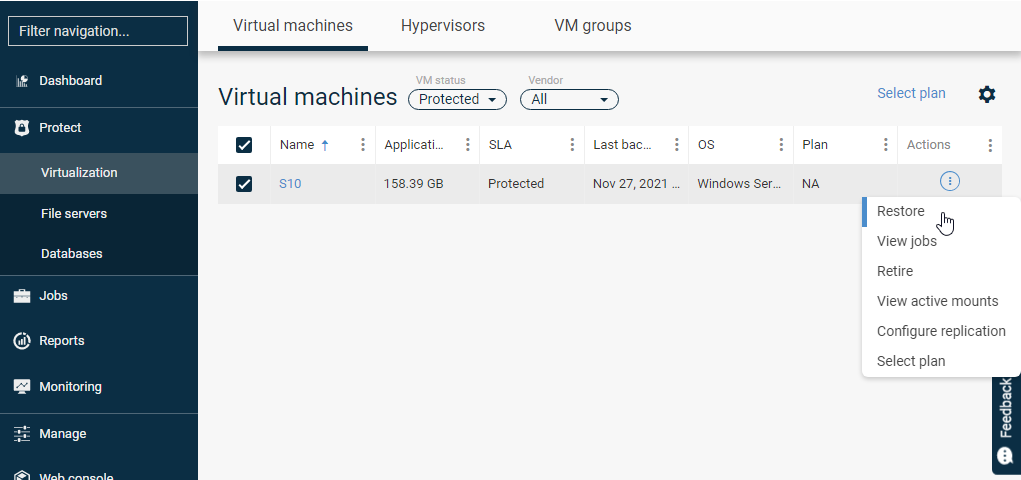
To restore a single file, go to Protect -> Virtualisation in the main menu, select the machine for which you would like to restore a single file and click Restore:
In the next window, we select how to restore the files from the backup:
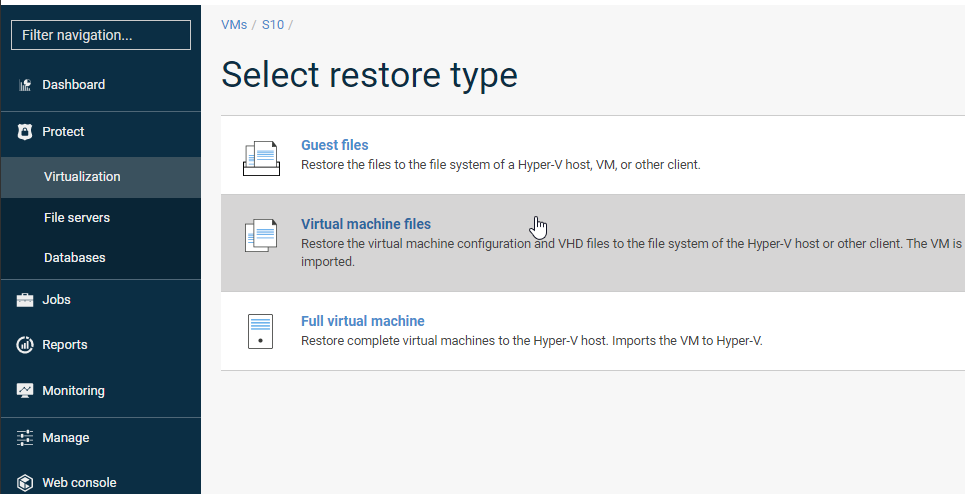
Guest files: not recommended; playback of individual files (file system) from the operating system to a client with Windows File System or Linux File System agent installed and to another virtual machine
Virtual machine files: restore machine configuration files to the client with the File System or Virtual Server Agent (VSA) installed.
Virtual machine files option
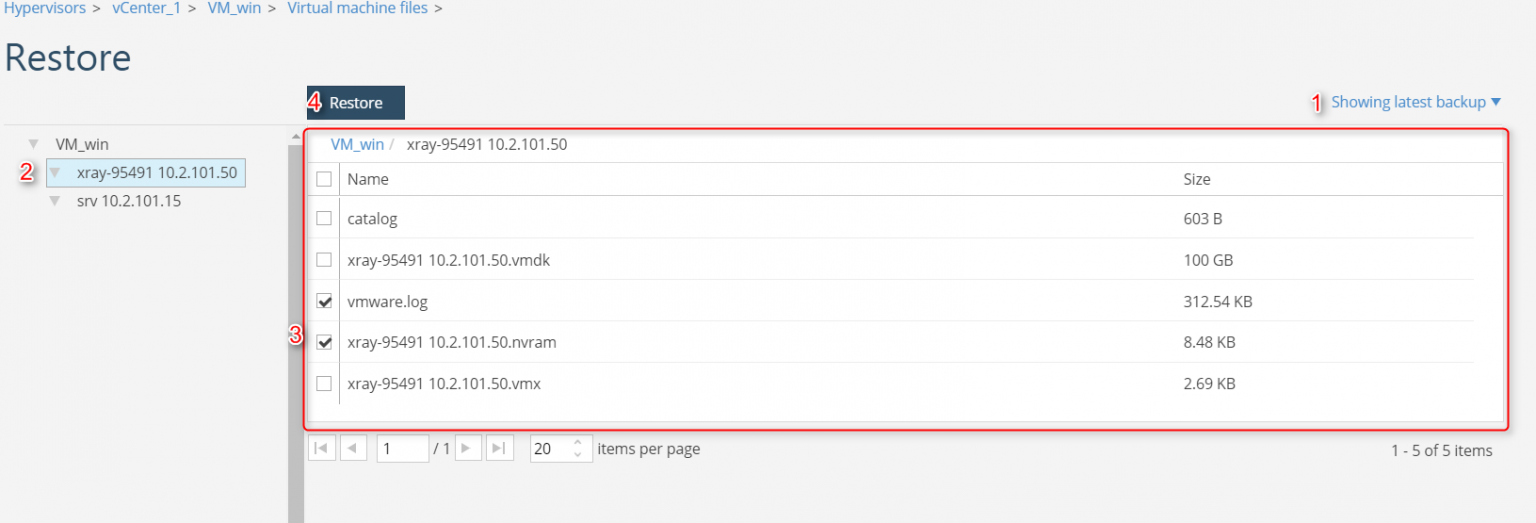
After selecting the Virtual machine files option, we set the time criterion from which we want to restore (1), then indicate the machine using the drop-down tree on the left (2), select the specific files (3) and use the Restore button to move on to the next opening options.
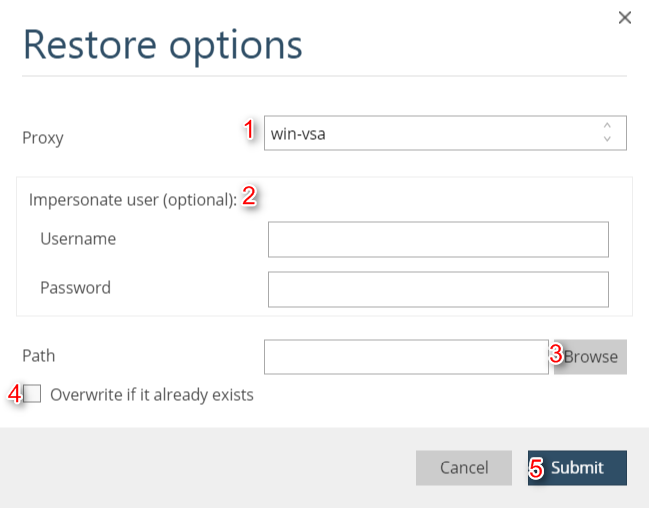
We indicate the server/client to which we want to perform the restoration (1), optionally add permissions to the machine (2), indicate the path to save (3), select the option to overwrite existing files (4) and use the Submit button to start the restoration (5):
We receive a message about the start of the playback task:

We can monitor the progress of the job in the Jobs section:

Status Completed indicates completion of the restoration.