Reconstruction of the entire machine
Full recovery can be performed via AdminConsola to a machine with the operating system already installed (Full Recovery Machine). NOTE: recovery is possible if we have properly configured data protection options.
Full Recovery Machine (for Windows)
NOTE: in order to recover the entire machine, protection of the machine with the System State option in the subclient properties (for Windows File System type agent) or the 1-Touch Recovery option (for Linux File System type agent) is required.
Requirement: you must prepare the machine on which the restore will be performed according to the documentation http://documentation.commvault.com/commvault/v11_sp12/article?p=57205.htm before performing the restore operation. In addition, you need to install the Windows File System agent on the machine where the restore will be performed, and disable backup activity on this new server/client.
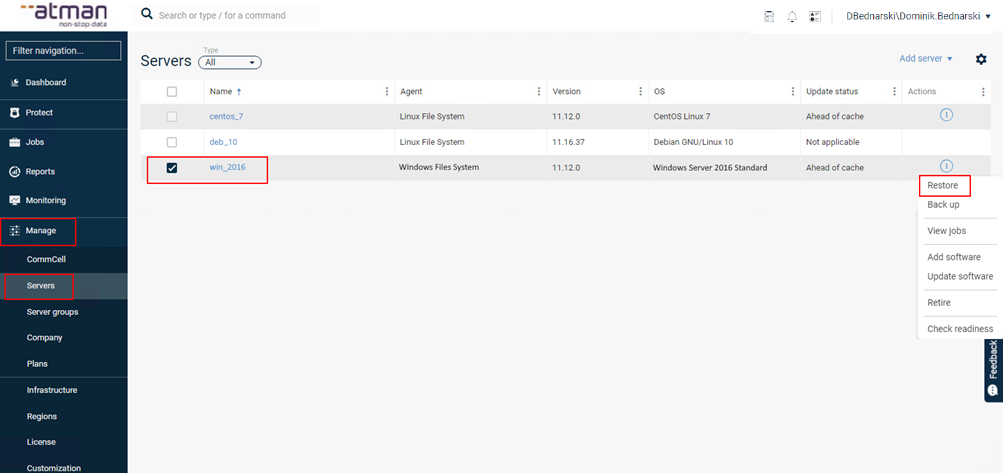
To restore the entire machine, go to Manage -> Servers in the main menu and select the server/client from which you would like to restore by clicking Restore:
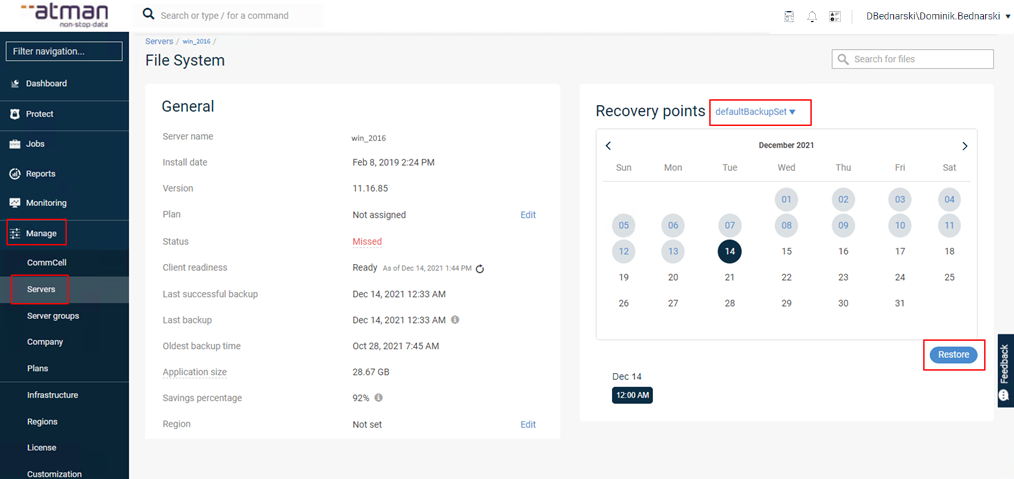
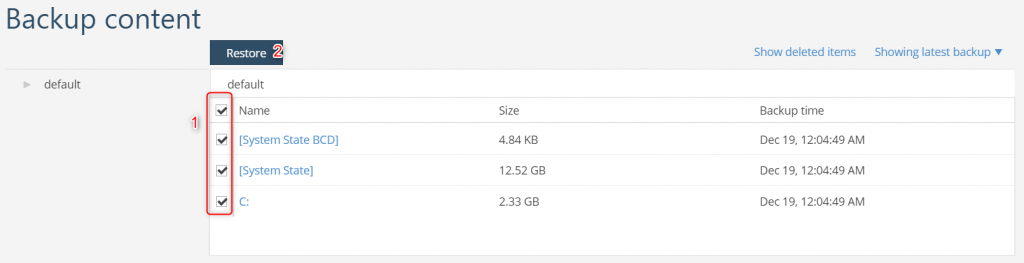
In the next step, select all objects “[System State BCD]”, “[System State]” and the system partition obligatorily, the rest of the partitions are not obligatory). Click Restore:
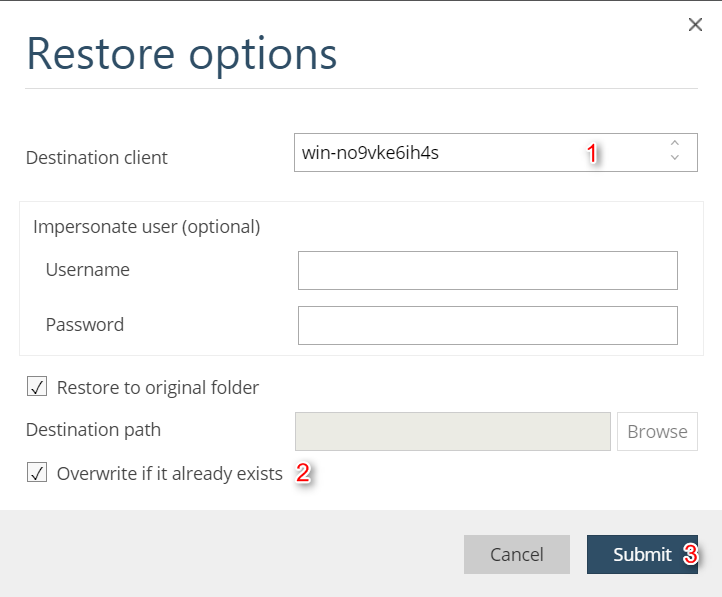
We then indicate the target server/client (1) to which the restoration is to be performed, tick Overwrite if it already exists(2)** and start the restoration by clicking Submit (3):**
We will receive a message that the task has started:

When we go to Jobs, we can verify the progress of the job:

The status Completed means that the task has been thoughtfully completed, the machine has been recreated.
Full Recovery Machine (for Linux)
NOTE: if the entire machine with mount points is not protected, full restoration will not be possible - appropriate backup configuration is required to use this option.
Requirement: before performing a restore operation, you must prepare the machine on which you will be performing the restore, according to the documentation http://documentation.commvault.com/commvault/v11_sp12/article?p=57175.htm. In addition, you need to install the Linux File System agent on the target machine where you will perform the restore, and disable the backup activity on the new target server/client.
To restore the entire machine, go to Manage -> Servers in the main menu and select the server/client from which you would like to restore by clicking Restore:
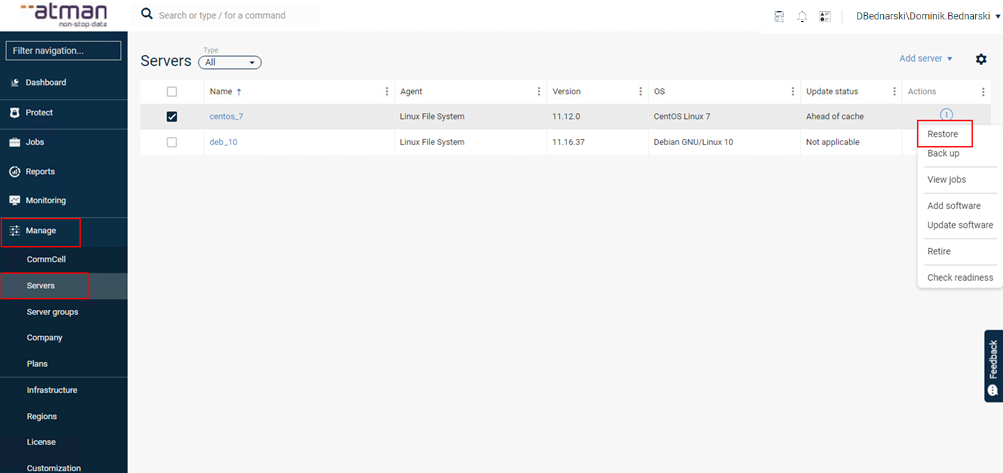
If you have multiple subclients configured, select the one from which you want to perform the restoration:
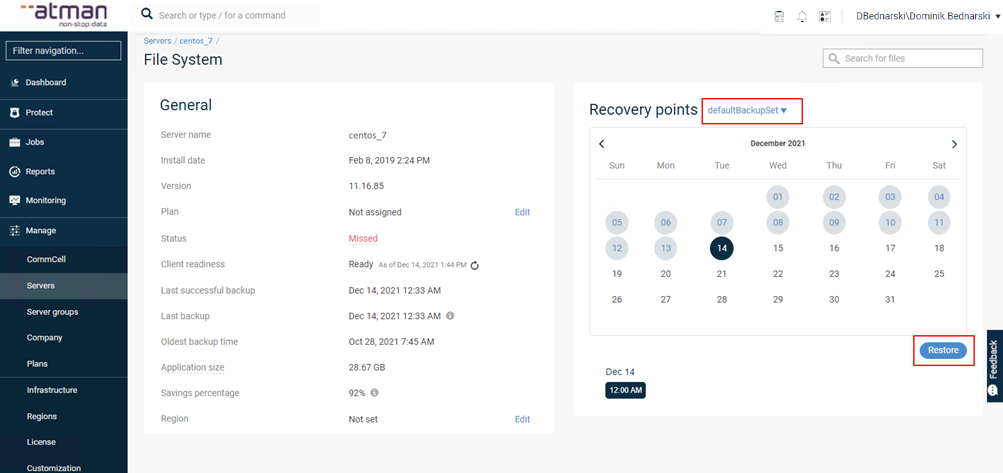
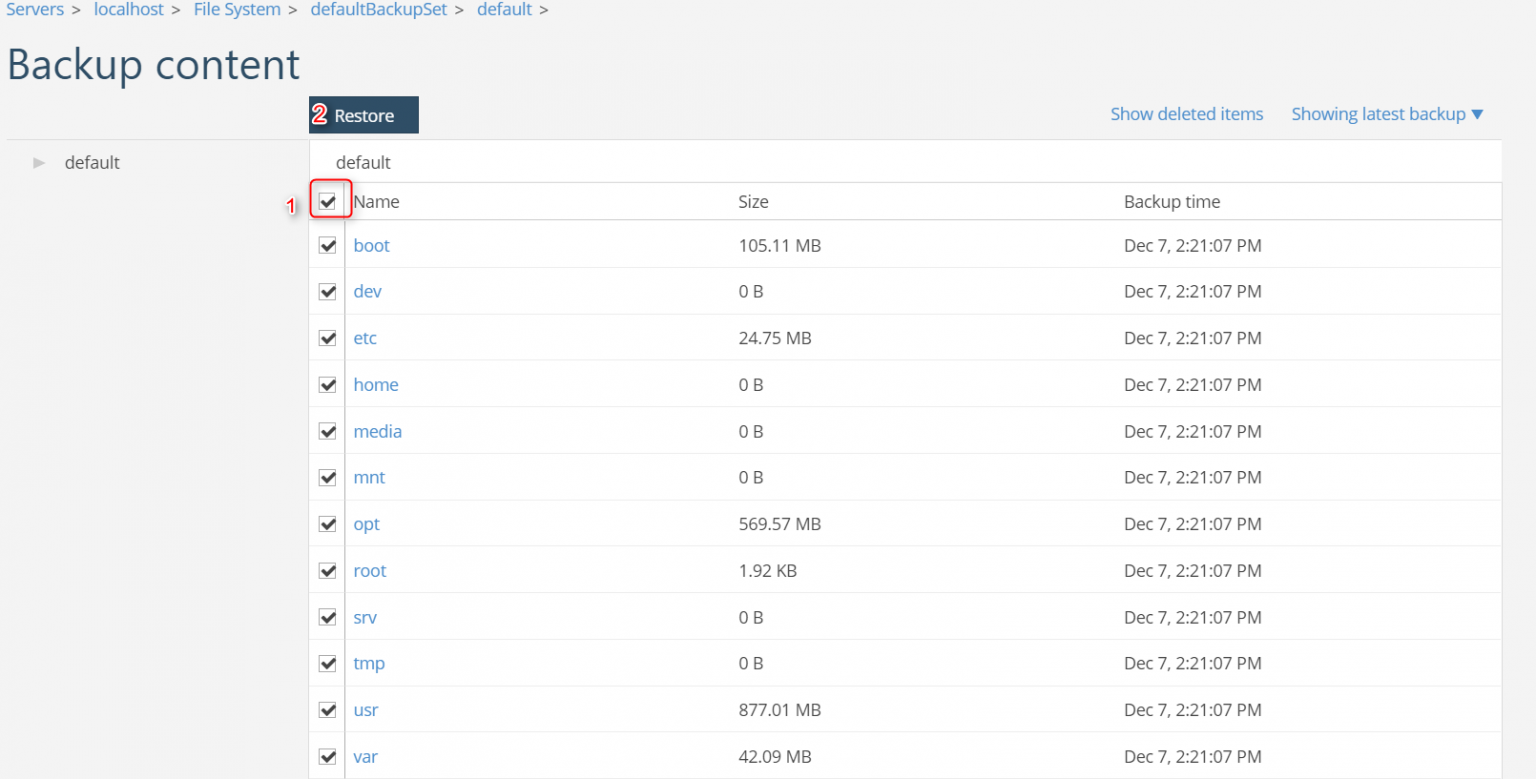
Select all objects (by ticking the box marked (1) and click Restore:
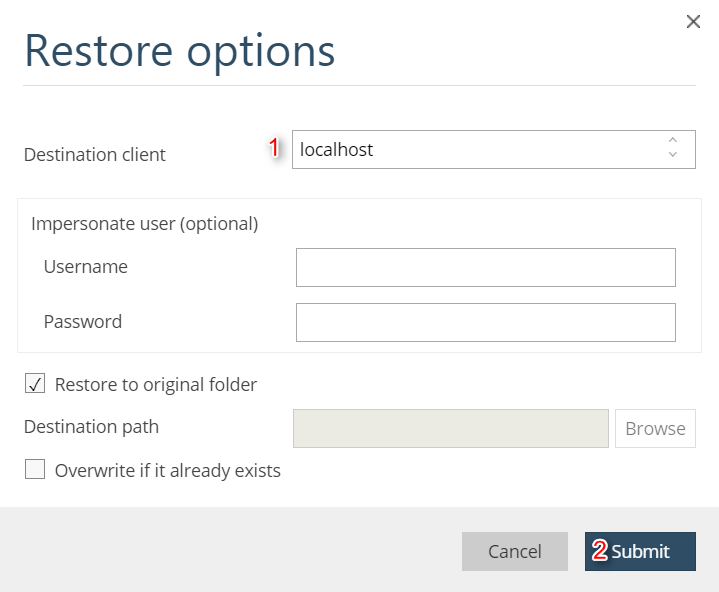
In the next step, we indicate the target server/client (1), do not select the option Overwrite if it already exists (in contrast to Windows File System) and start the restoration by clicking Submit (2):
You will receive a message that the task has been started

When you go to the Jobs section, you can observe the job:
