Logging on to the instance
The primary way to log in to an instance is by using the SSH key indicated when the instance was created.
You should also remember to unlock access to the SSH or RDP port in Security Groups - if you are unsure how to do this see this chapter.
Console in the panel
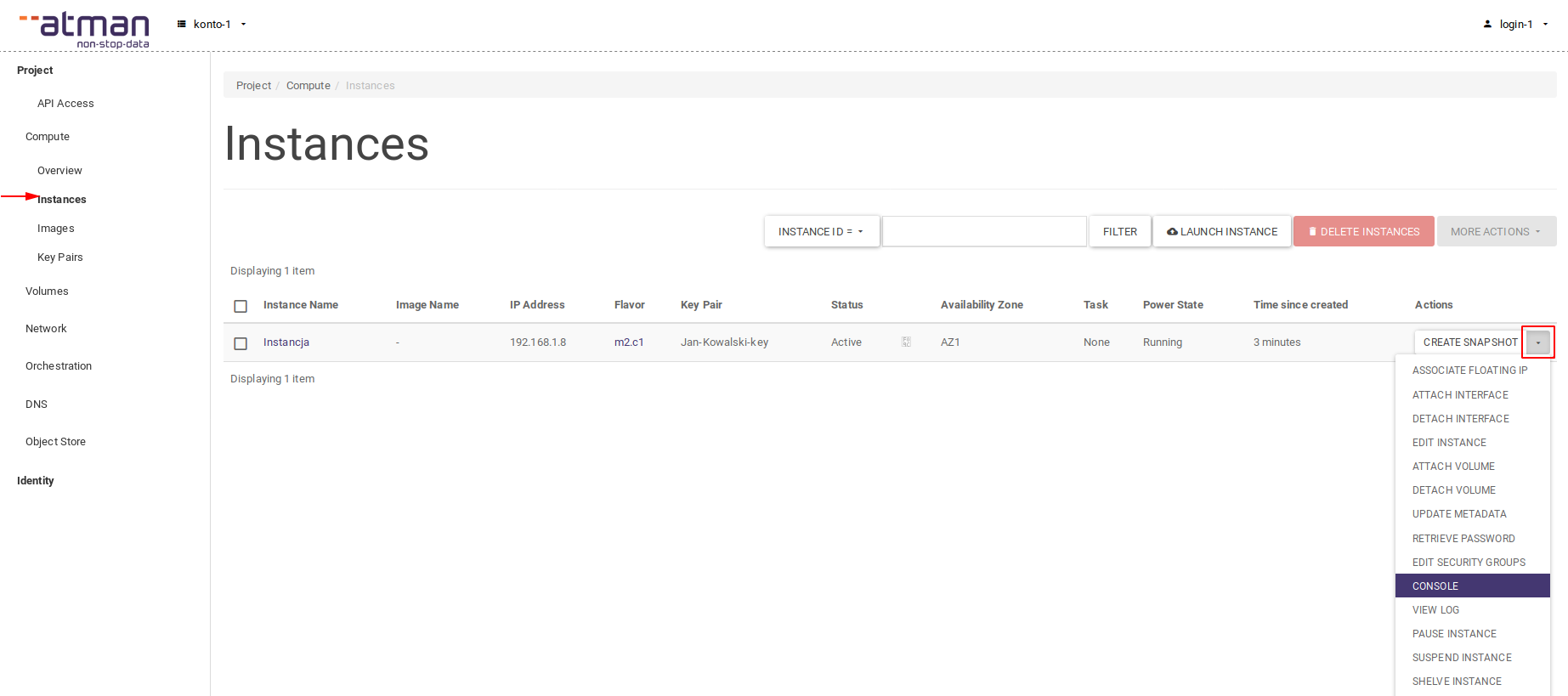
The Atman Cloud panel allows access to the console of each instance, to access the console simply select the Console option in the Actions column, in the list of instances:
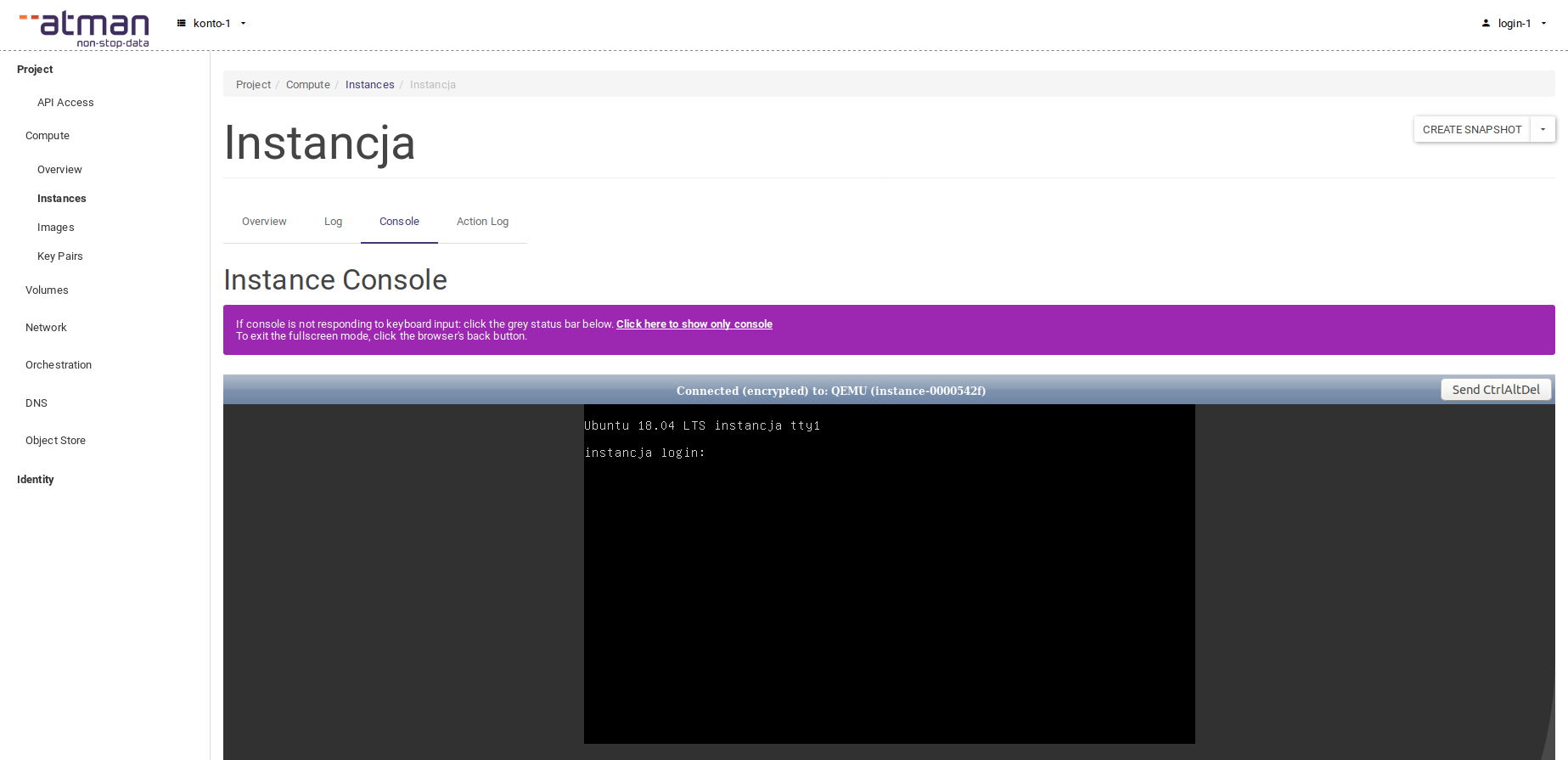
To log in to the console, you will need to provide a user and password - later in this article we describe how to get or set up these credentials. Even if access to the instance is to be performed only with the SSH key, it is worth having a user in the system to which you can log in locally with the password - in case of problems with access to the instance, you can perform diagnostics and repairs in the console in the panel.
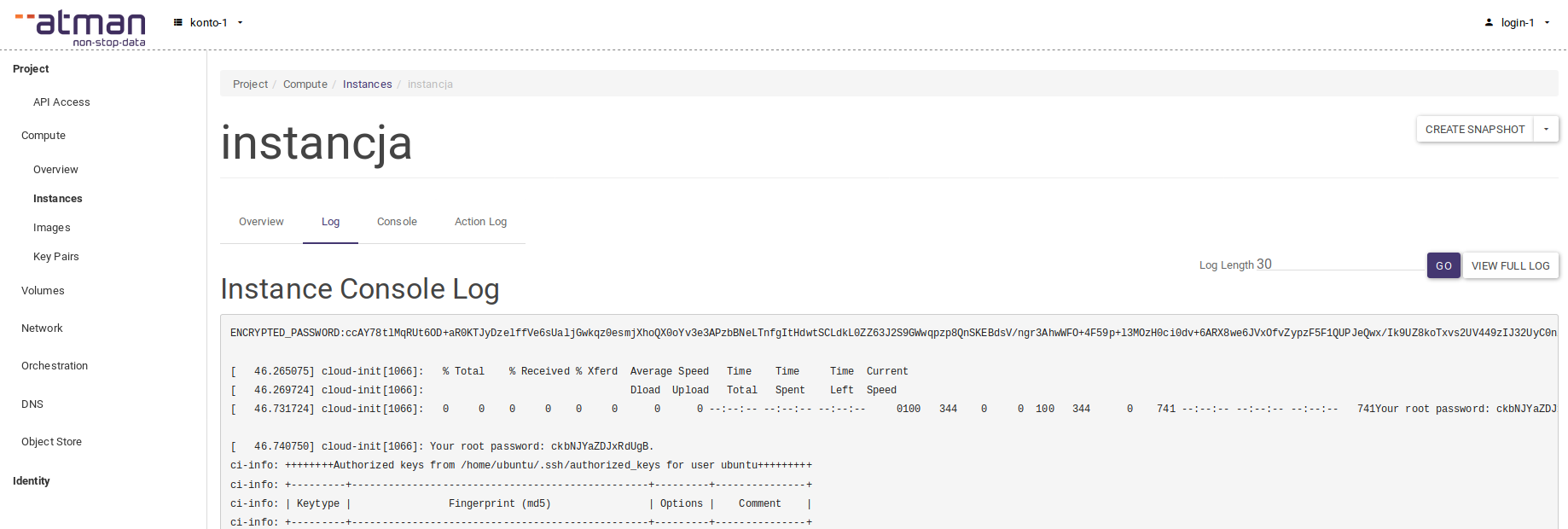
Next to the Console tab is the Log tab, which can be very useful when performing diagnostics for problems with the instance’s operating system. For example, if the operating system stops responding both network and locally, we can find information about recent errors in the Log tab.
Linux
SSH key access
We log in with the same user name as the name of the chosen distribution:
CentOS:
centosDebian:
debianFedora:
fedoraopenSUSE:
opensuseUbuntu:
ubuntu
In older versions of operating systems, the default login is root.
If logging in from Linux, we run the command:
ssh -i cloud.key username@ip
When logging in from Windows, we can use the Putty programme.
NOTE: Putty requires keys in *.ppk format - if you are using a panel-generated key you should convert it in PuttyGen.
Logging with password
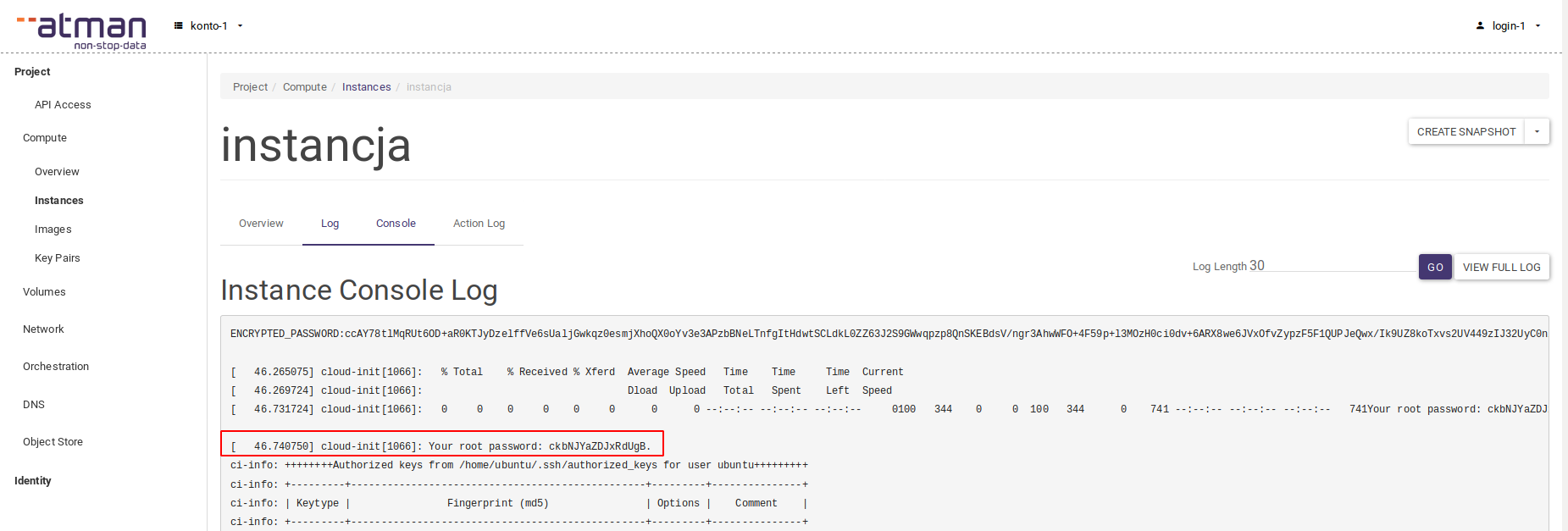
When the instance is first started, in the Atman Cloud panel, in the Log tab mentioned above, there is a password on the root user. Logging in to the root user from SSH is usually disabled (except for older versions of operating systems), but it is possible to log in to the console in the panel and set the password to a different user.
Setting a password when creating an instance
Most operating system images support cloud-init scripts, which can be used to automatically configure accesses to instances.
Documentation on cloud-init scripts: https://cloudinit.readthedocs.org/en/latest/
When launching the instance, enter the script that will be called when the instance is launched in the Customisation Script field on the Configuration tab. Example script that sets the password:
#cloud-config
password: mysecret
chpasswd: { expire: False }
ssh_pwauth: True
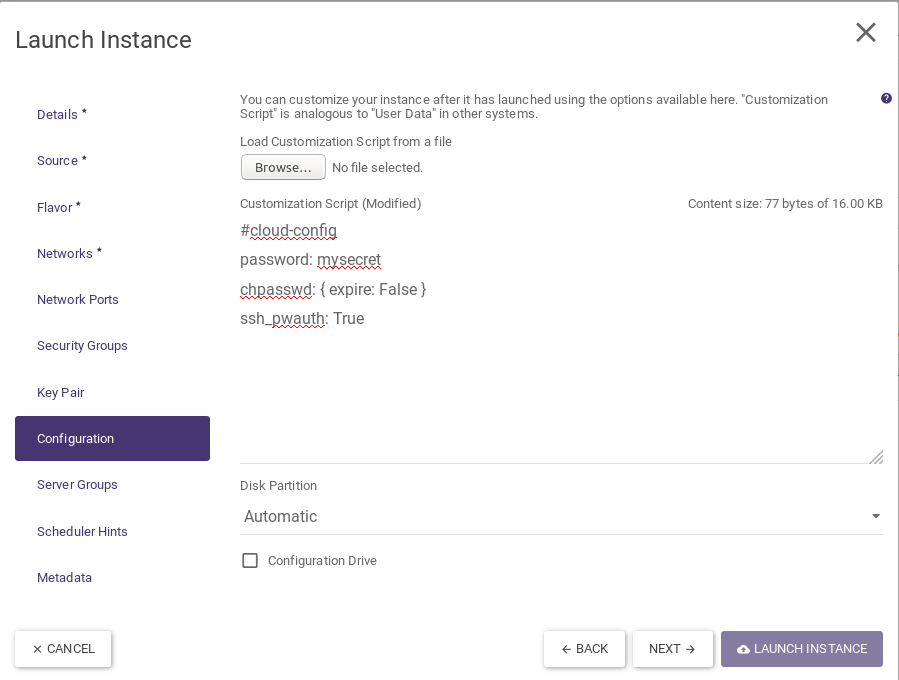
The password will be set on a centos, ubuntu or debian user - depending on the system selected.
Important! If you need to set a password for a user on a system that will not have access to the cloud router, check the “Configuration drive “ option - this will allow the #cloud-config script to run independently of the ATMAN cloud metadata server.
Windows
Password generation based on SSH key
On Windows systems, the user on which the password is set is respectively:
Windows 2012 and 2016:
AdministratorWindows 10 (trial - evaluation version only):
Admin
The password is generated based on the SSH key selected when the instance was created. To obtain the password, select Retrieve Password in the Actions column, in the instance list:
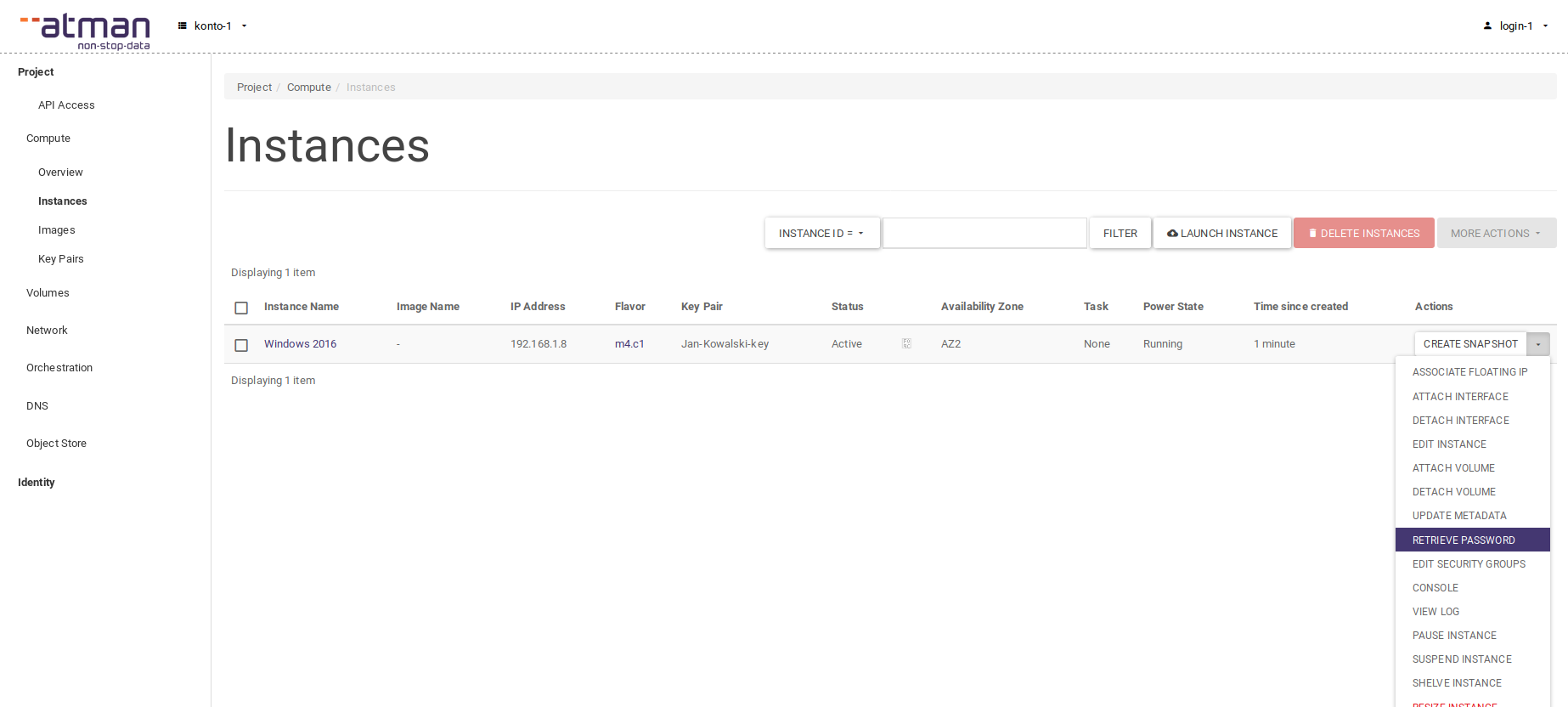
Once selected, a window will appear in which you must indicate your private SSH key and select Decrypt Password.
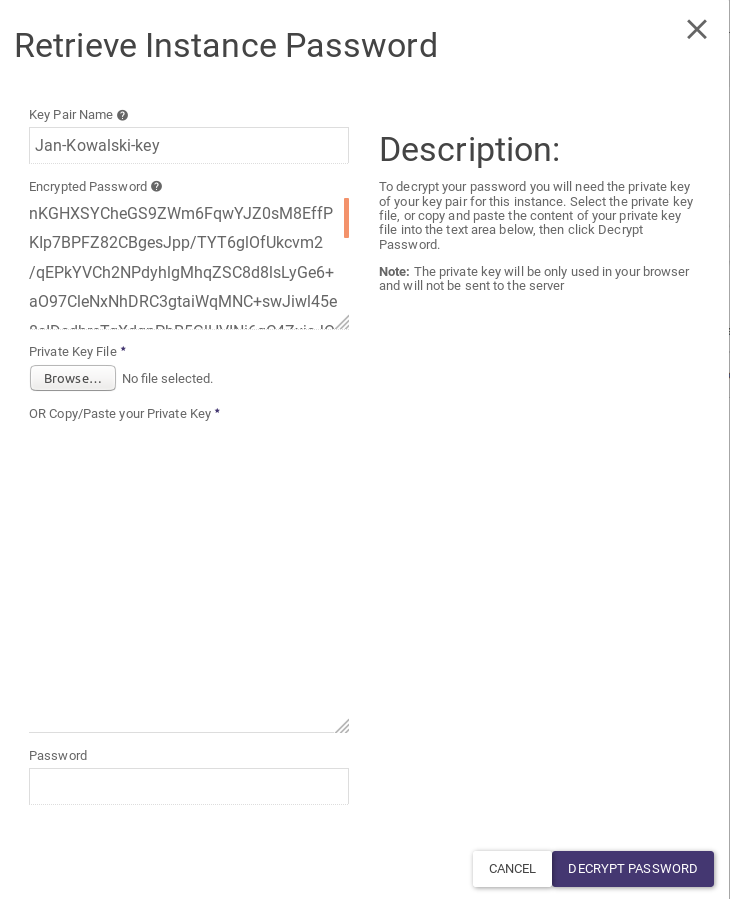
The option to decrypt the password with the private key is only available a few tens of seconds after the instance has finished initialising - if you see the message Instance Password is not set or is not yet available in the window, this means that the instance is still initialising - wait a moment and then try again.
If you do not see the Retrieve Password option in the Actions column, it means that you did not select an SSH key when creating the instance. If you did not set a password using the method given in the next section gaining access to the instance will be impossible.
Setting a password when creating an instance
When creating the instance, under the Metadata tab, we create the admin_pass field and fill in the password:
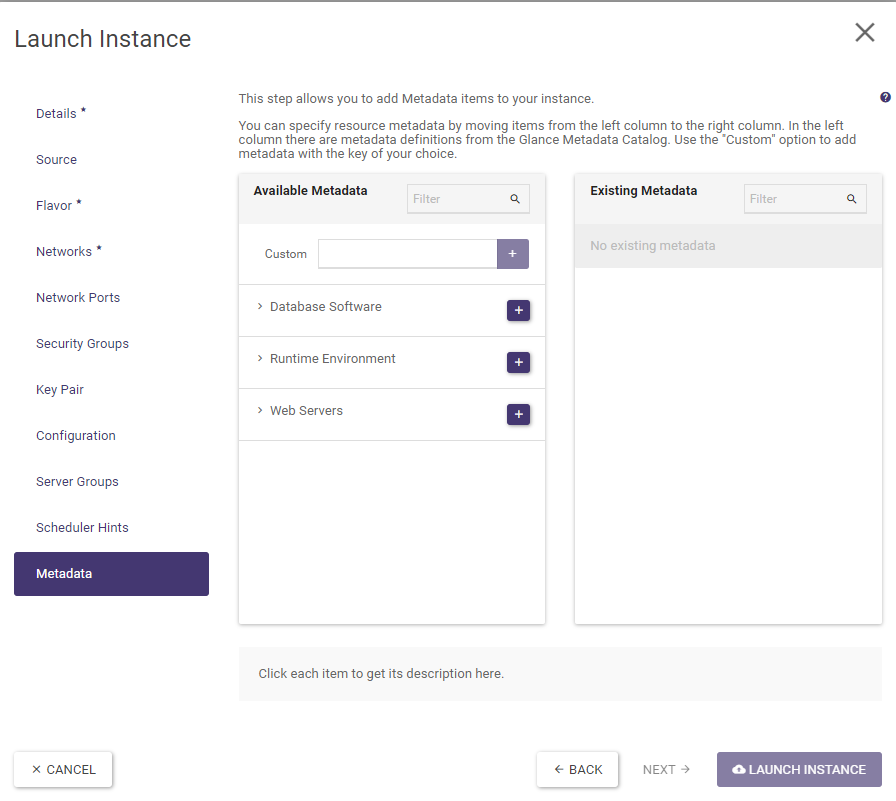


The password provided must meet the minimum requirements for Windows passwords, for Windows 2016 the requirements are as follows:
Password must meet complexity requirements
This security setting determines whether passwords must meet complexity requirements.
If this policy is enabled, passwords must meet the following minimum requirements:
Not contain the user's account name or parts of the user's full name that exceed two consecutive characters
Be at least six characters in length
Contain characters from three of the following four categories:
English uppercase characters (A through Z)
English lowercase characters (a through z)
Base 10 digits (0 through 9)
Non-alphabetic characters (for example, !, $, #, %)