Creating an encrypted volume
It is possible to create an encrypted volume on the Atman Cloud service. Such a volume is encrypted using the LUKS (Linux Unified Key Setup) specification and is secured with a 256-bit encryption key, which is automatically generated at the time of creation. In order to be able to encrypt volumes, we must have additional permissions. To do so contact the Atman Service Desk servicedesk@atman.pl.
Creating an encrypted volume from the Horizon panel
Creating an encrypted volume from the Horizon panel
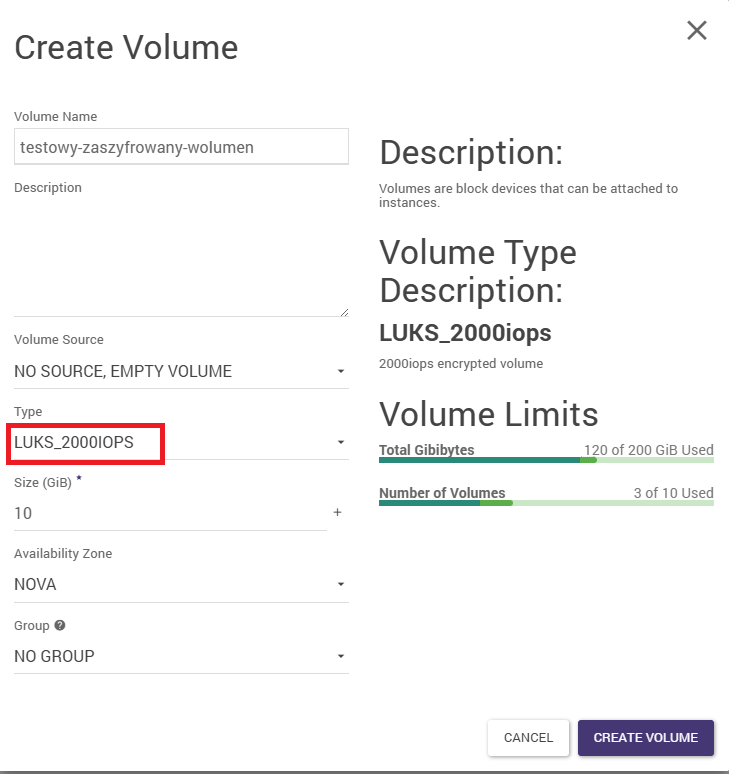
Creating a volume using the Horizon panel is done from the Volumes -> Volumes -> Create Volume tab.
After pressing the option to create a volume, we need to select the type (Type) of LUKS with the appropriate number of IOPS, as shown in the image below. The rest of the parameters are selected according to our preferences. Please note that we are bound by the restrictions of the design quota.
Creating an encrypted, system (bootable) volume from an unencrypted volume
Creating an image from an unencrypted volume
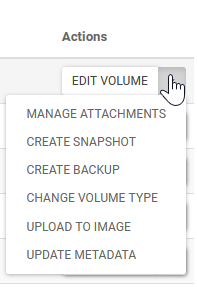
Under Volumes -> Volumes, from a previously prepared volume, select Upload to Image
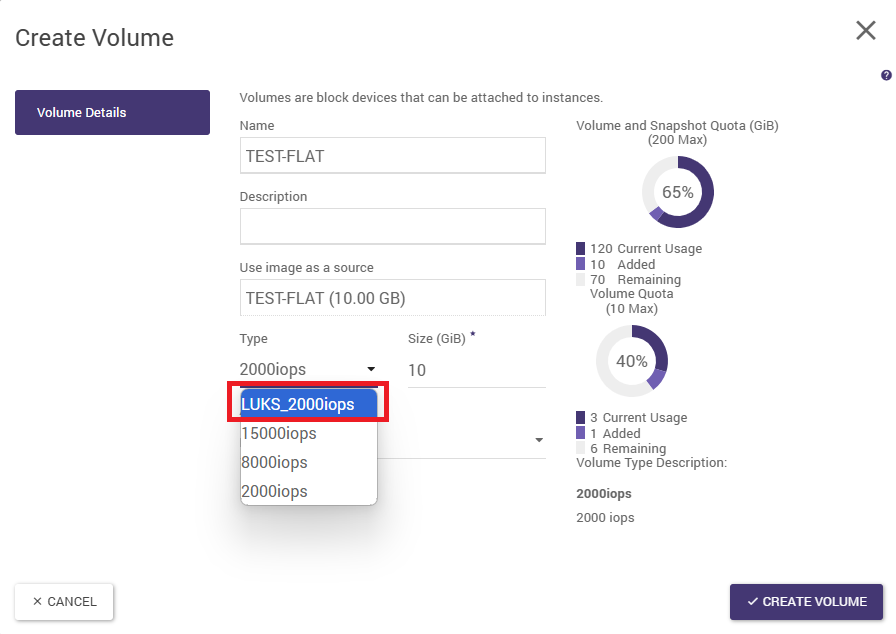
Creation of an encrypted volume from a previously prepared image
Under Compute -> Images, we select Create Volume from the previously prepared image. At this point, we need to select the encrypted type (e.g. LUKS_2000iops) in the Type field
Creation of an instance with a bootable, encrypted volume
In the Volumes -> Volumes tab, select the volume prepared in this way and then in the options for this volume select Launch as Instance
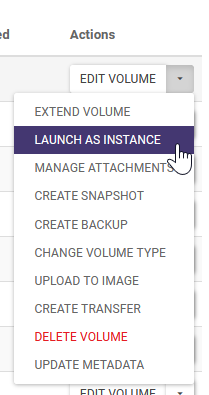
Then wait until the instance has been created and is in the Active/Running state.
Comments and known problems with encryption
Although the Atman Cloud team ensures that the encryption service meets all customer requirements, the following problems and limitations are known:
Creating an instance from an encrypted volume (point described above), may end with the instance going into ERROR state and cannot be used. To prevent this, the encrypted volume must be re-created from the image and the instance must be re-created. The conversion of an unencrypted volume to an encrypted volume (the point described below, via the so-called retype option) does not work correctly. This is caused by a bug in the functionality: https://bugs.launchpad.net/nova/+bug/1925818 Due to a limitation in the co-operation between the Barbican service and Nova (more specifically LUKS), it is not possible to swap the encryption key. Such a volume must be decrypted, checked for functionality and then re-encrypted and then attached to the instance. Converting a volume to an encrypted volume from the Horizon panel(Note: feature temporarily unavailable)
Occasionally, there may be a need to convert a volume that has previously been unencrypted into an encrypted volume. To perform such a conversion, the following conditions must be met:
volume must be in Available status
the user must have the wizard role, which allows the creation of encrypted volumes
the user has access to the encrypted volume type (volume type: encrypted True)
the so-called root volume can only be encrypted by Atman Cloud administrators - in the event of such a request, this must be made via the ServiceDesk
Choosing the right volume for conversion
Select the appropriate volume under Volumes -> Volumes . Then in the Actions column, select Change Volume Type
Volume conversion
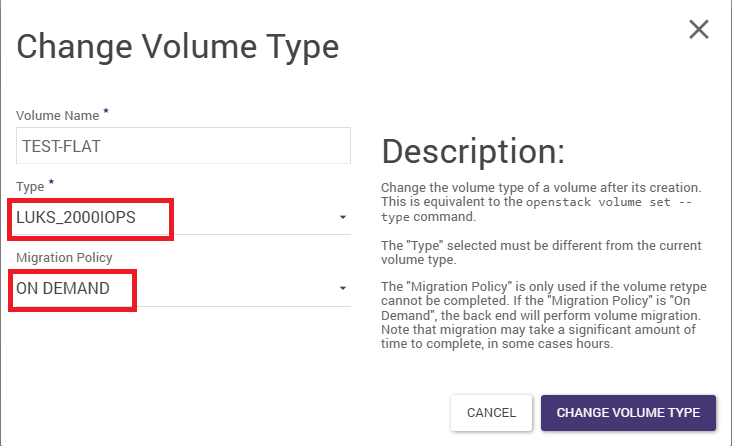
In the newly opened window (example above), we select the appropriate type (Type), relevant to the encrypted type. We then select the appropriate Migration Policy “On Demand “ and confirm with the Change Volume Type button.
Once the type change process is complete (the operation is time-consuming, and can take up to several hours if the volume is larger than 1TB), we can mount the volume to the instance.