Logging in to the panel and changing the password
STEP 1
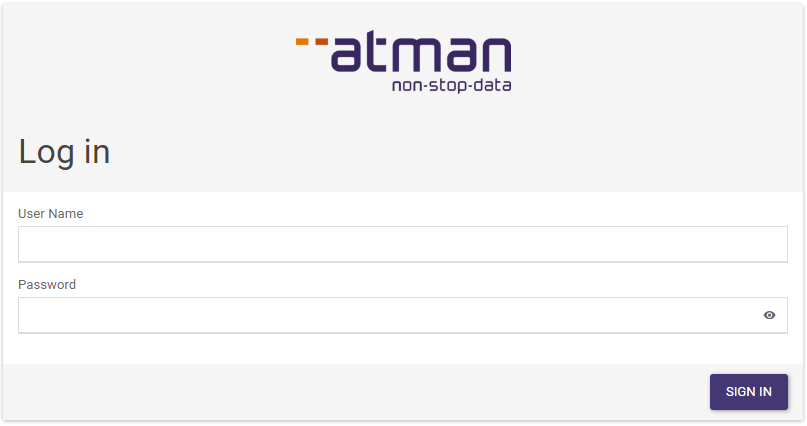
Enter the address https://waw1-b.cloud.atman.pl in the browser window
STEP 2
In the login form, the user enters the login and password that they have received from Atman.
STEP 3
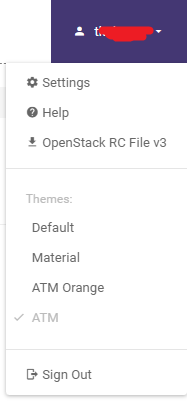
In the top right-hand corner of the panel, expand the list by clicking on the user name and then click Settings.
STEP 4
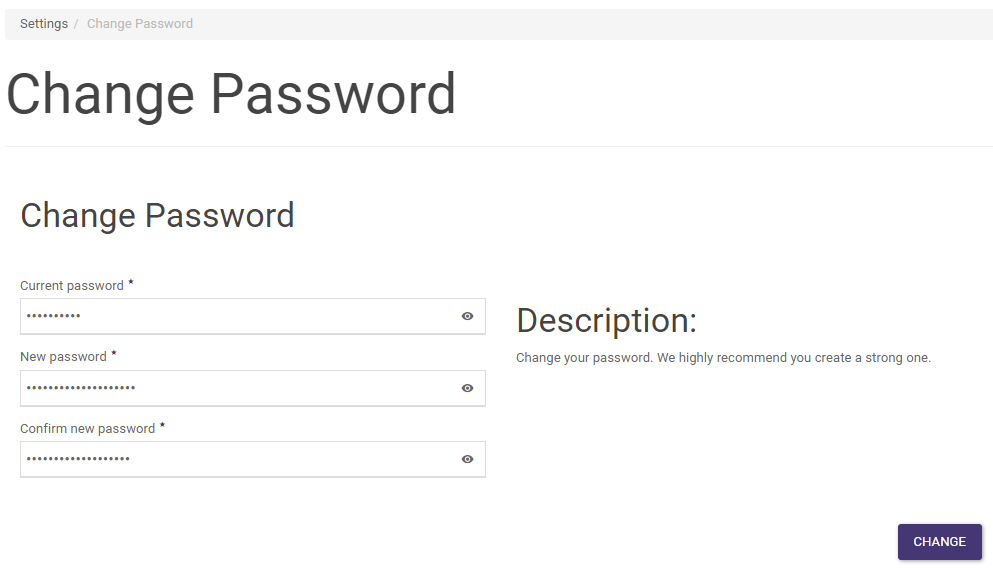
In the main menu of the panel, on the left-hand side of the screen you will see a Settings tab at the very bottom of the list, under which you must select Change Password.
STEP 5
In the main part of the screen, the user changes the password, confirming the change with the Change button.
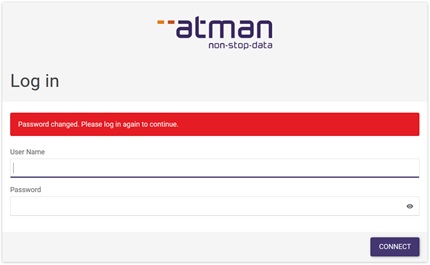
You are automatically logged out of your account and told to log in with a new password: